

Aura Manual
The Aura Render Engine manual: the viewport, toolbar, menus, gizmos, shading modes, parameter panels, and the POPX Geo, Material and Light operators it renders.
Aura Render Engine
Aura is the POPX render engine: real-time ray tracing of the POPX Geo, Light and Material operators of a network, rendered to a TOP. It runs on Windows with an NVIDIA RTX GPU and needs the Aura plugin set up first (see Installation).
Aura has two render modes. Path Tracing follows random light paths through the scene, so area lights, soft shadows, reflections, refractions, dispersion, emissive materials, volumes and bounce light all come from one physically based transport; Denoise resolves its noise in real time, or Refine accumulates samples for stills and video. Hybrid lights every pixel directly, one ray per effect, and is clean and stable from the first frame.
With Viewport on, the Aura operator is also an editor: a toolbar, camera navigation, object selection, transform gizmos, light and camera icons and two parameter panels, all drawn over the live render. This manual walks through every part of it.
Building a Scene
Aura has no inputs. It finds its scene by name next to itself: the POPX Geo operators matched by Geometry, the POPX Lights matched by Lights, and the Camera. Patterns such as * or geo_* select the operators.
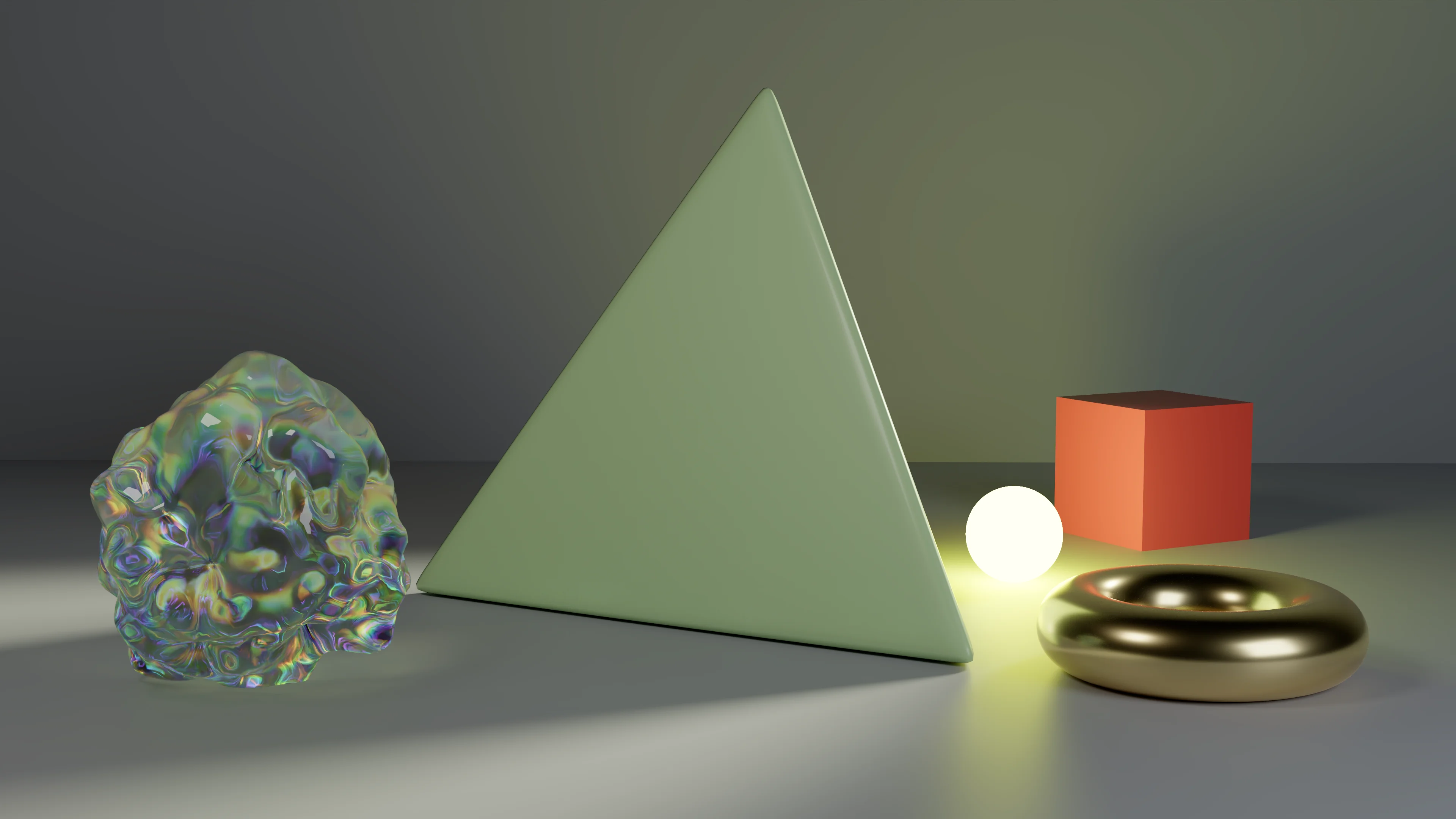
The scene in this manual is a few objects, each wired into a POPX Material and then a POPX Geo, plus a floor and a wall, POPX Lights and a Camera COMP.
- → POPX Geo - Renders its input POP in Aura. Its Render in Aura, Visible to Camera, Cast Shadows and Visible to Reflections flags set where the geometry shows; its transform places it in the scene
- → POPX Material - Sets the look of the geometry it is wired into: base color, metallic, roughness, specular, clearcoat, transmission with IOR and dispersion, emission and texture maps
- → POPX Light - Lights the scene: point, spot, area, environment, directional or ambient, each with its own shadows, scattering, visibility and light linking
- → Camera COMP - The camera the image is rendered from when the viewport is off, or when you look through it in the viewport
- → Aura - Geometry, Lights and Camera choose the scene; Render Mode, Denoise or Antialiasing and Resolution Scale set the quality and speed
The Viewport
Turn on Viewport on the Render page, then open the Aura operator's viewer, a Panel pane, or a floating window. The render fills the middle; the Aura parameters panel is on the left and the object panel on the right. Both panels can be hidden, and their inner edges drag to resize.
What the viewport selects or moves are the POPX Geo, Light and Camera operators themselves, so every change is a normal parameter change of those operators, and every drag can be undone with Ctrl+Z.
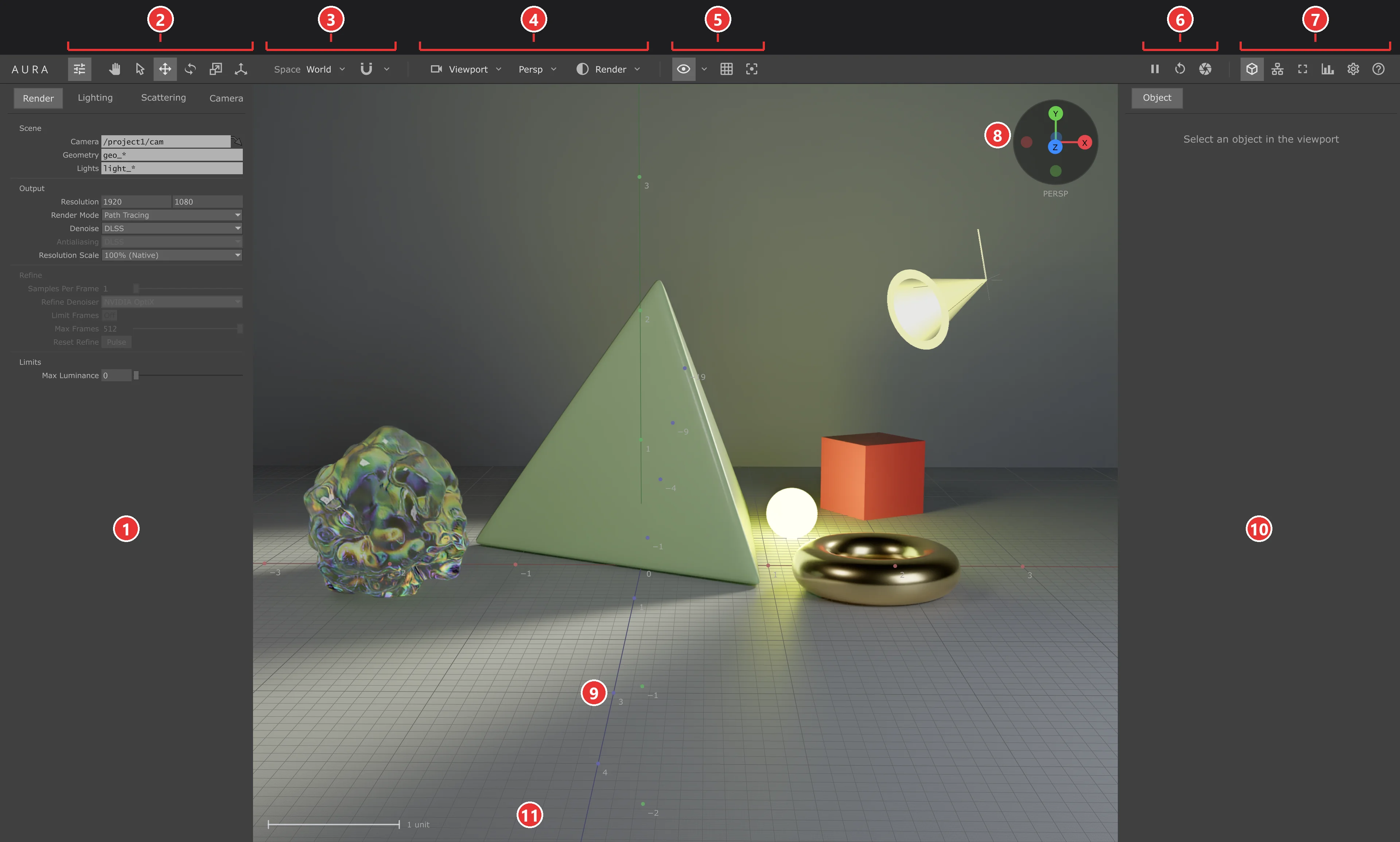
- → 1 Parameters - The Aura operator's own parameters, page by page, with the same help as the operator
- → 2 Tools - Show or hide the parameters panel, then Navigate, Select, Move, Rotate, Scale and Universal
- → 3 Space and snapping - The gizmo axes and pivot, and snapping with its steps
- → 4 View - The camera menu, Perspective or Orthographic, and the shading mode
- → 5 Display - Overlays, guides and Isolate
- → 6 Render - Pause, Restart Refine and Snapshot
- → 7 Panels and window - Object panel, Aura window + network, Full screen, Stats HUD, Settings and Shortcuts
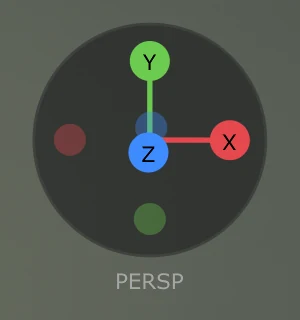
- → 8 Axis gizmo - Click an axis for the Right, Top or Front view (the small ends for Left, Bottom, Back); PERSP / ORTHO toggles the projection
- → 9 The render - The live image with the grid, light and camera icons, outlines and gizmos drawn over it
- → 10 Object panel - The selected object's parameters, with a Material tab when a POPX Material feeds it
- → 11 Scale bar - The length of one grid unit at the current zoom
Toolbar
The toolbar runs across the top of the viewport. Hover a button for its name and shortcut.
Tools, Space and Snapping

- → Parameters - Shows or hides the Aura parameters panel
- → Navigate (1) - Only moves the view: no selecting, picking or transforming
- → Select (2, hold S) - Click an object or an icon to select it; Shift adds, Ctrl toggles, a click on empty space clears, drag a box to select several
- → Move (3) - Drag an arrow (one axis), a square (a plane) or the centre (free move)
- → Rotate (4) - Drag a ring to rotate around its axis; the outer ring turns around the view
- → Scale (5) - Drag a cube to scale along an axis; the centre scales uniformly
- → Universal (6) - Move, rotate and scale handles in one gizmo
- → Space - The gizmo axes (World, Local or Parent) and the pivot (Bounding box centre, Object origin or Selection centre)
- → Snapping (hold X) - Snaps every move, rotation and scale to steps; the caret sets the steps: Move 0.1 to 1, Rotate 5 to 90 degrees, Scale 0.1 to 0.5
Camera, Projection, Shading and Display

- → Camera - The Viewport camera (free navigation) or Look through a scene camera; the Perspective, Top, Front and Right views; Quad view; Lock Camera; Save View to a scene camera
- → Projection (o) - Perspective or Orthographic
- → Shading (w) - Render, Clay, a render pass (Albedo, Normal, Depth, Motion, Diffuse light, Specular light), Bounces or Ambient occlusion
- → Overlays (H) - Shows or hides everything drawn over the render; the caret picks the grid, icons, outlines, hover highlight, gizmo, axis gizmo, stats, bounding box and Y axis
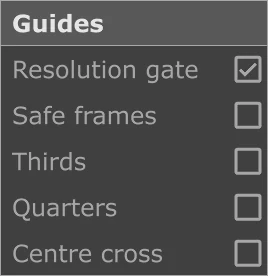
- → Guides - Resolution gate, safe frames, thirds, quarters and a centre cross
- → Isolate (I) - Renders only the selected objects; the lights stay
Render, Panels and Window

- → Pause / Resume - Freezes the image and stops the engine; Resume starts it again
- → Restart - Starts Refine again from zero
- → Snapshot - Saves the render as a PNG to a snapshots folder next to the project file
- → Object - Shows or hides the object panel
- → Aura + network - Opens the viewport in a pane above the network editor (drag the divider), and closes it again
- → Full screen - Maximises the viewport pane to the whole TouchDesigner window, and back
- → Stats - Shows or hides the stats HUD
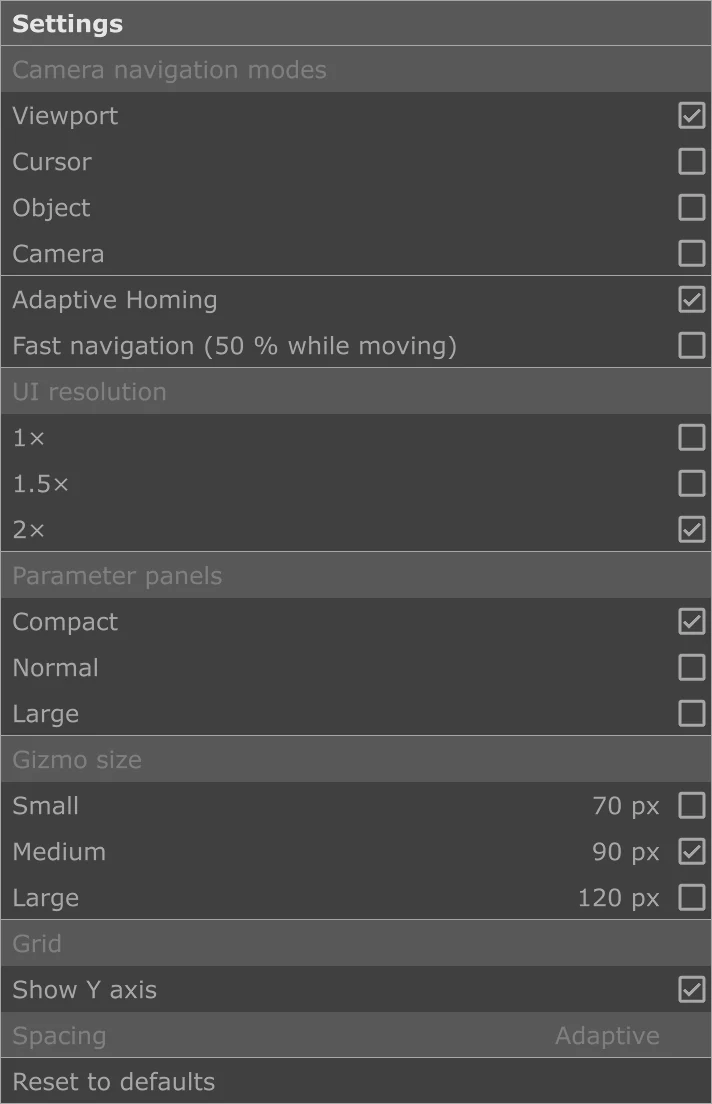
- → Settings - Navigation mode, Adaptive Homing, Fast navigation, UI resolution, panel size, gizmo size, grid and Reset to defaults
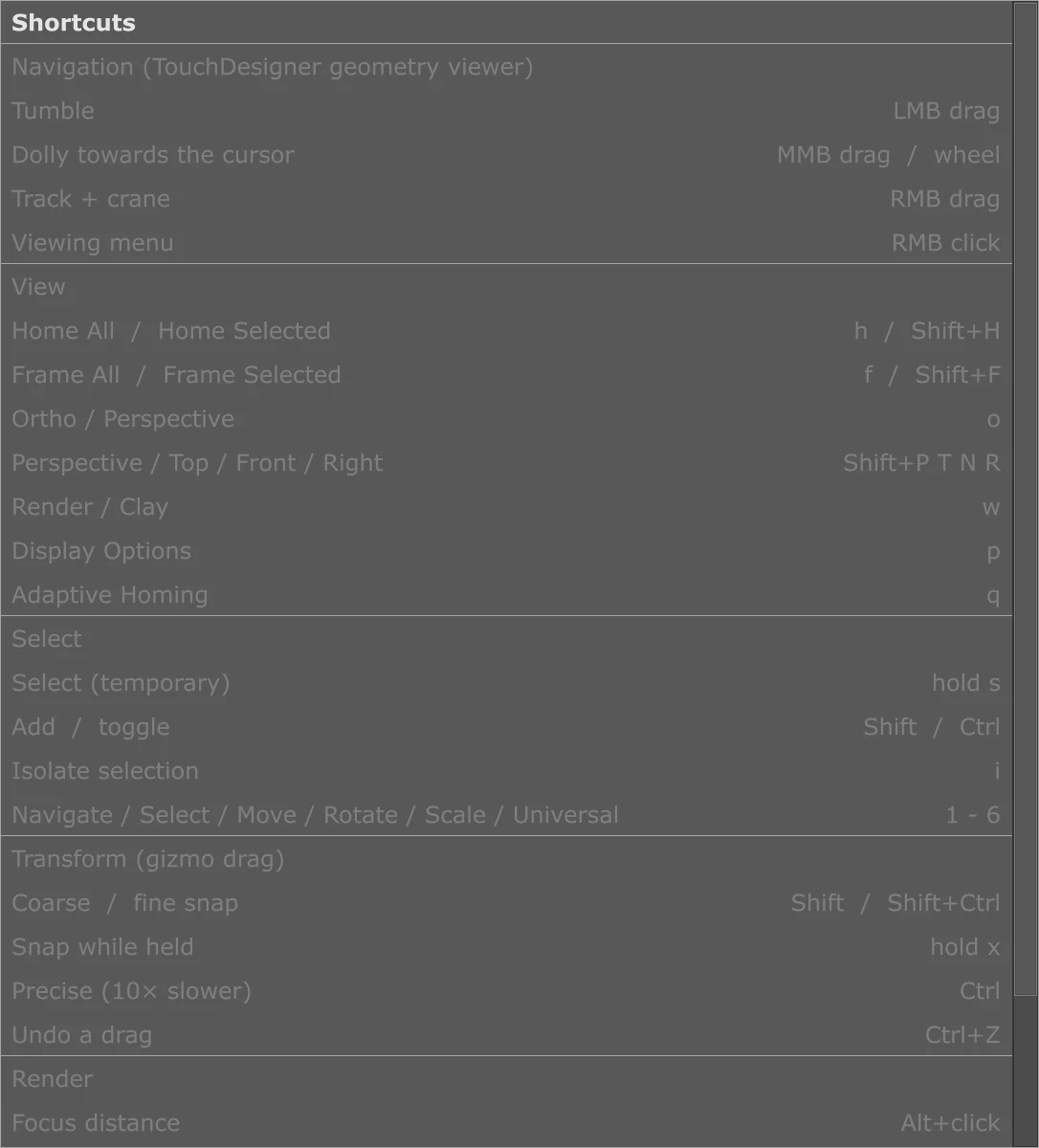
- → Help (?) - Every mouse and keyboard shortcut
Menus
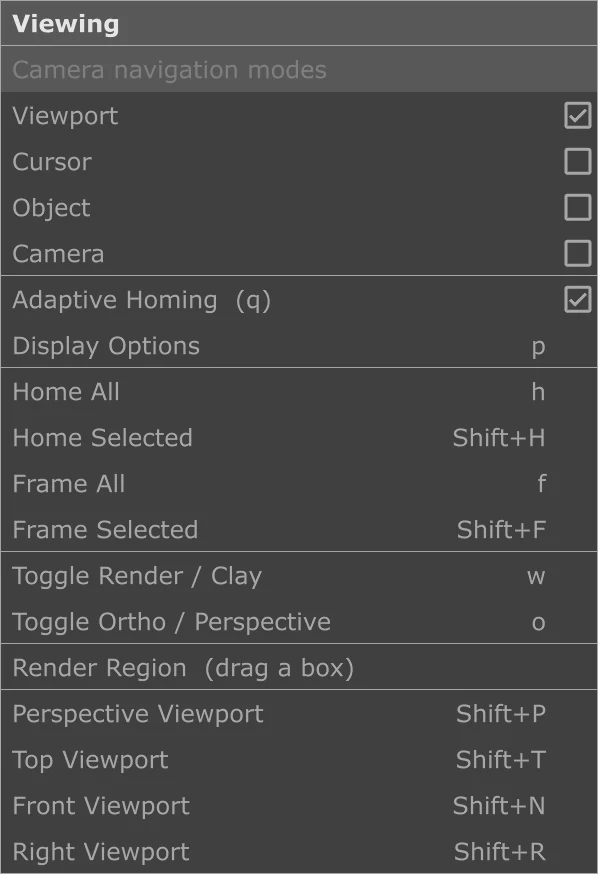
The dropdowns and carets open TouchDesigner menus under the button. A check mark shows the current choice, and the shortcut of an item is on its right.
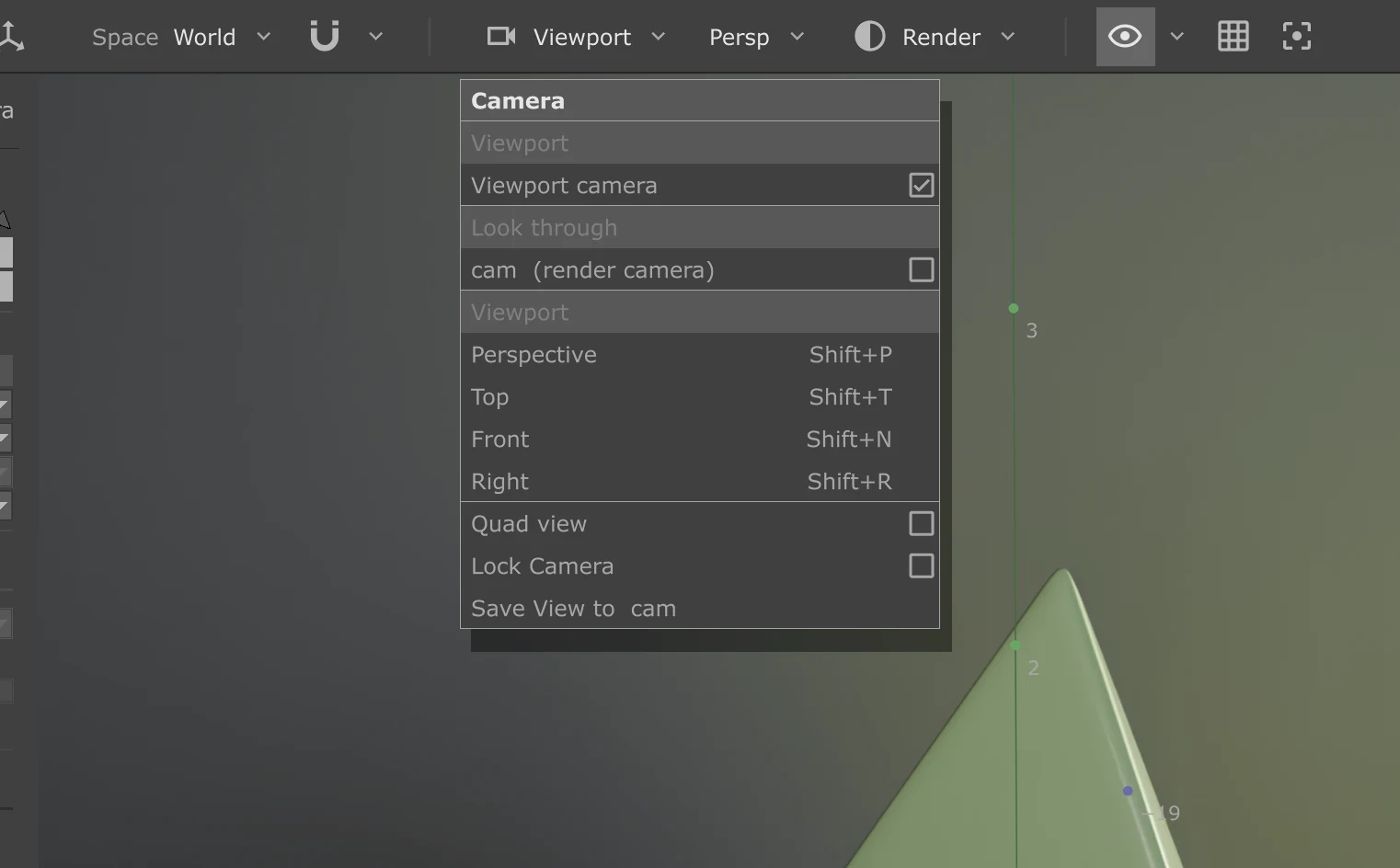
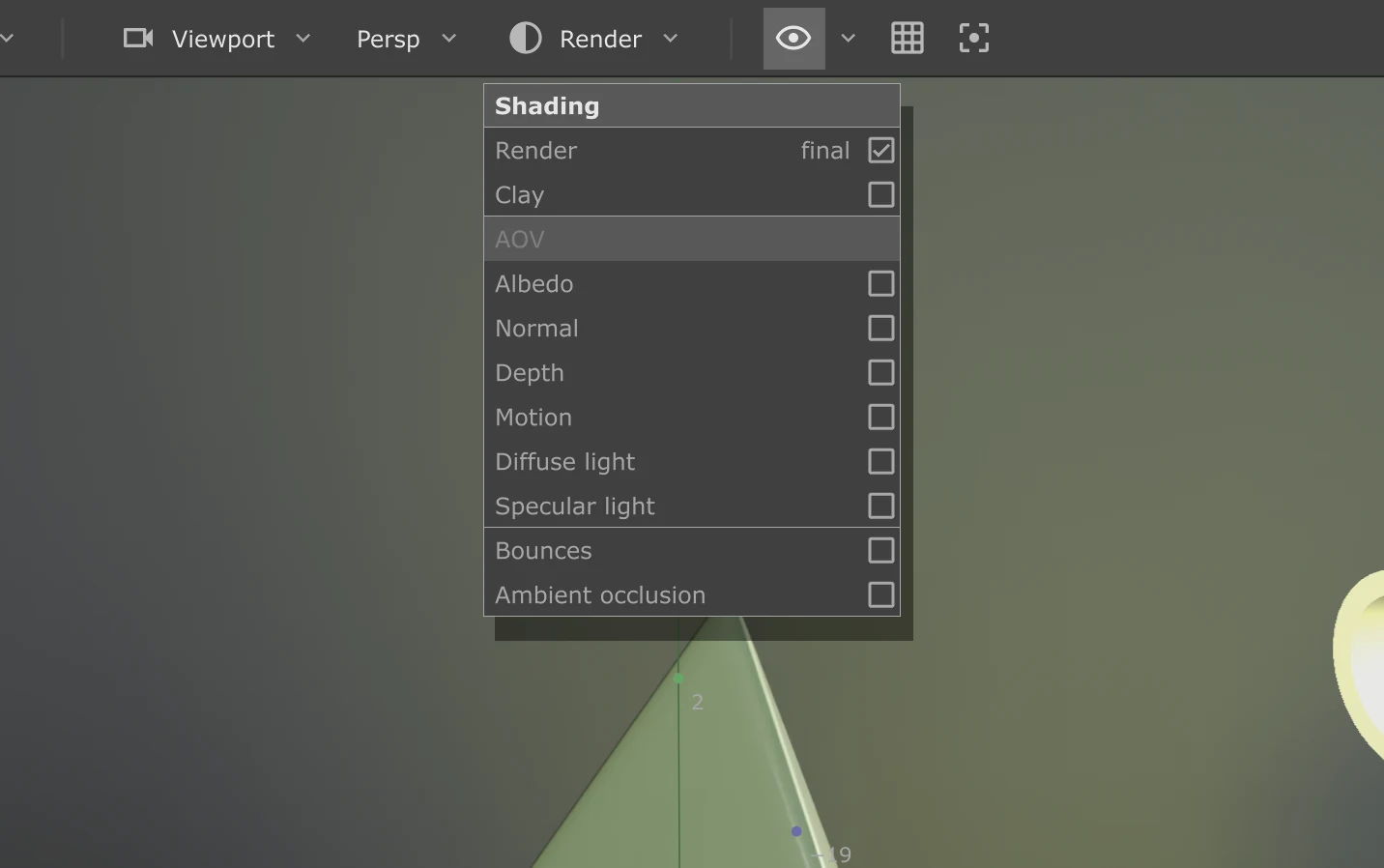
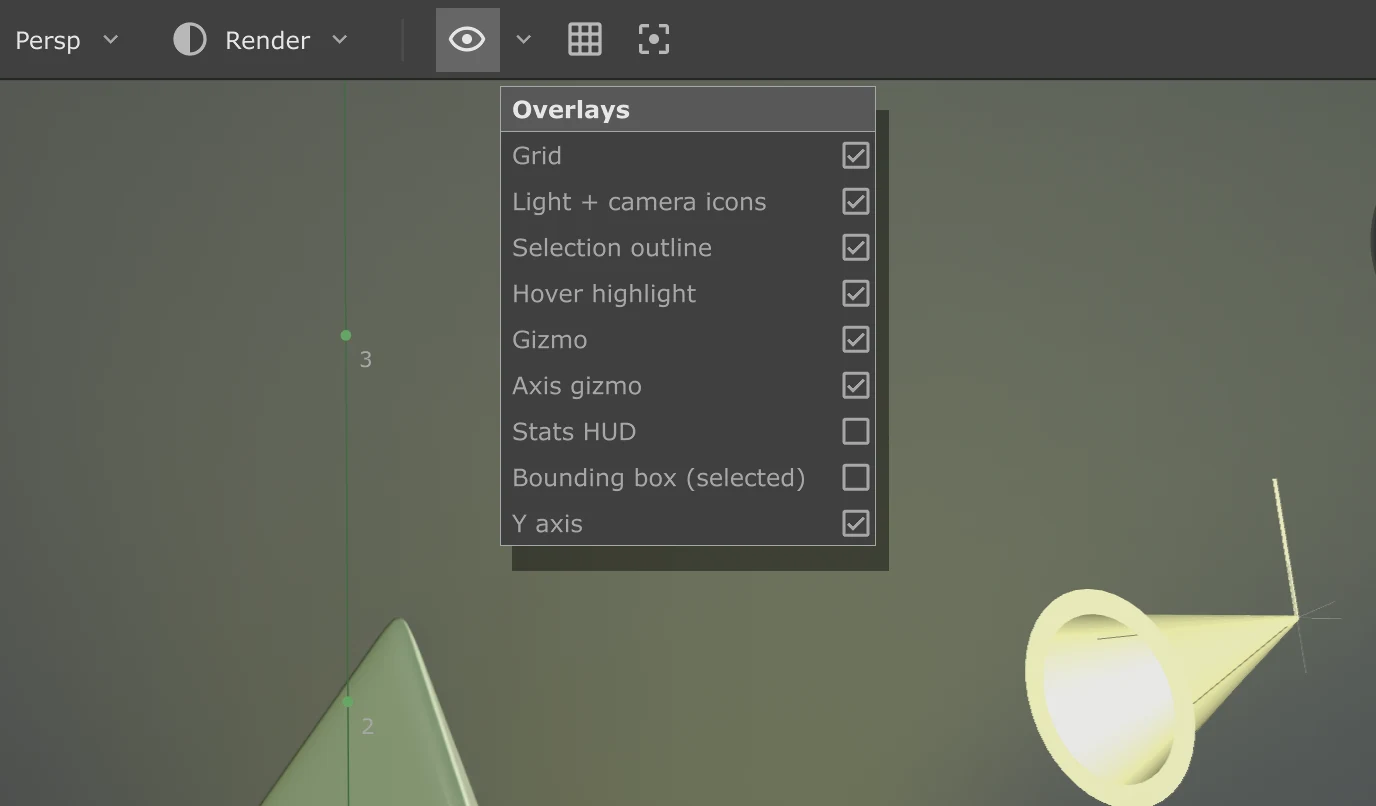
Every Menu
Right-click the render for the Viewing menu; the others open from the toolbar.
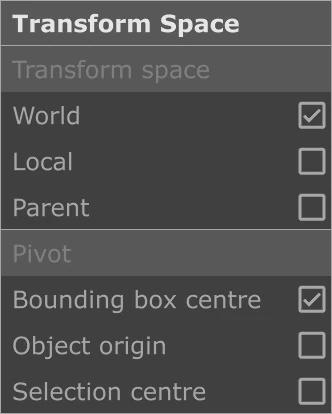
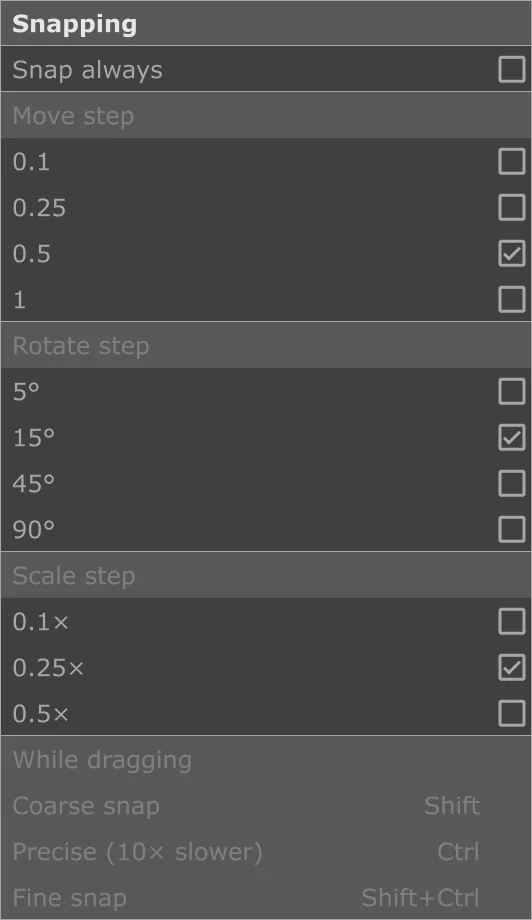
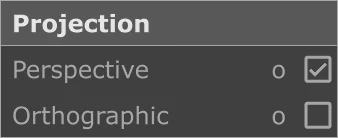
Selecting and Transforming
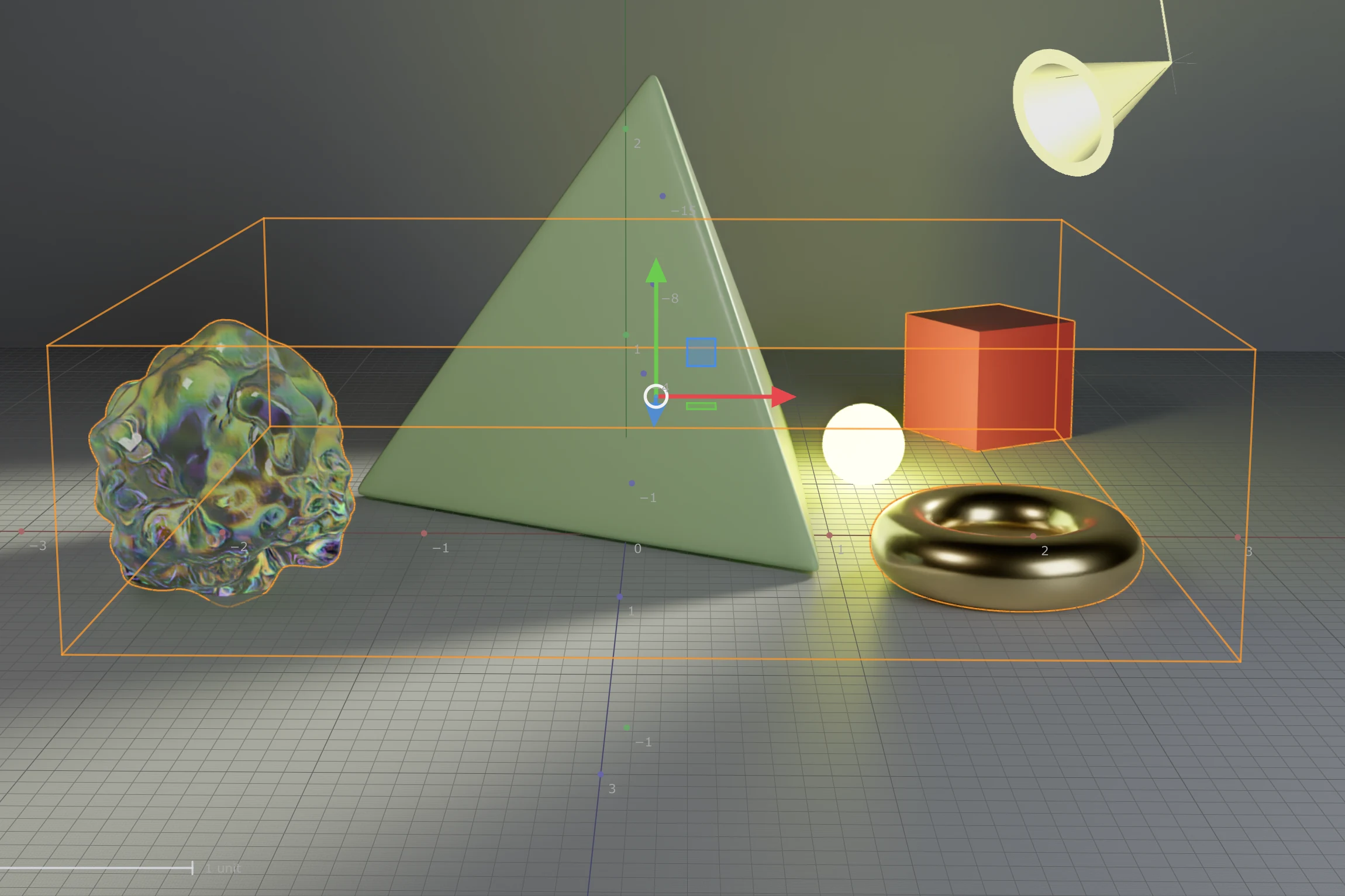
Click an object to select it: it gets an orange outline and the object panel shows its parameters. The gizmo of the current tool sits on the pivot set in the Space menu. Lights and cameras are selected by their icons.
While dragging a handle, Shift snaps coarse, Ctrl is precise (10 times slower) and Shift+Ctrl snaps fine; hold X to snap without the Snapping toggle. Esc cancels a drag, Ctrl+Z undoes it.
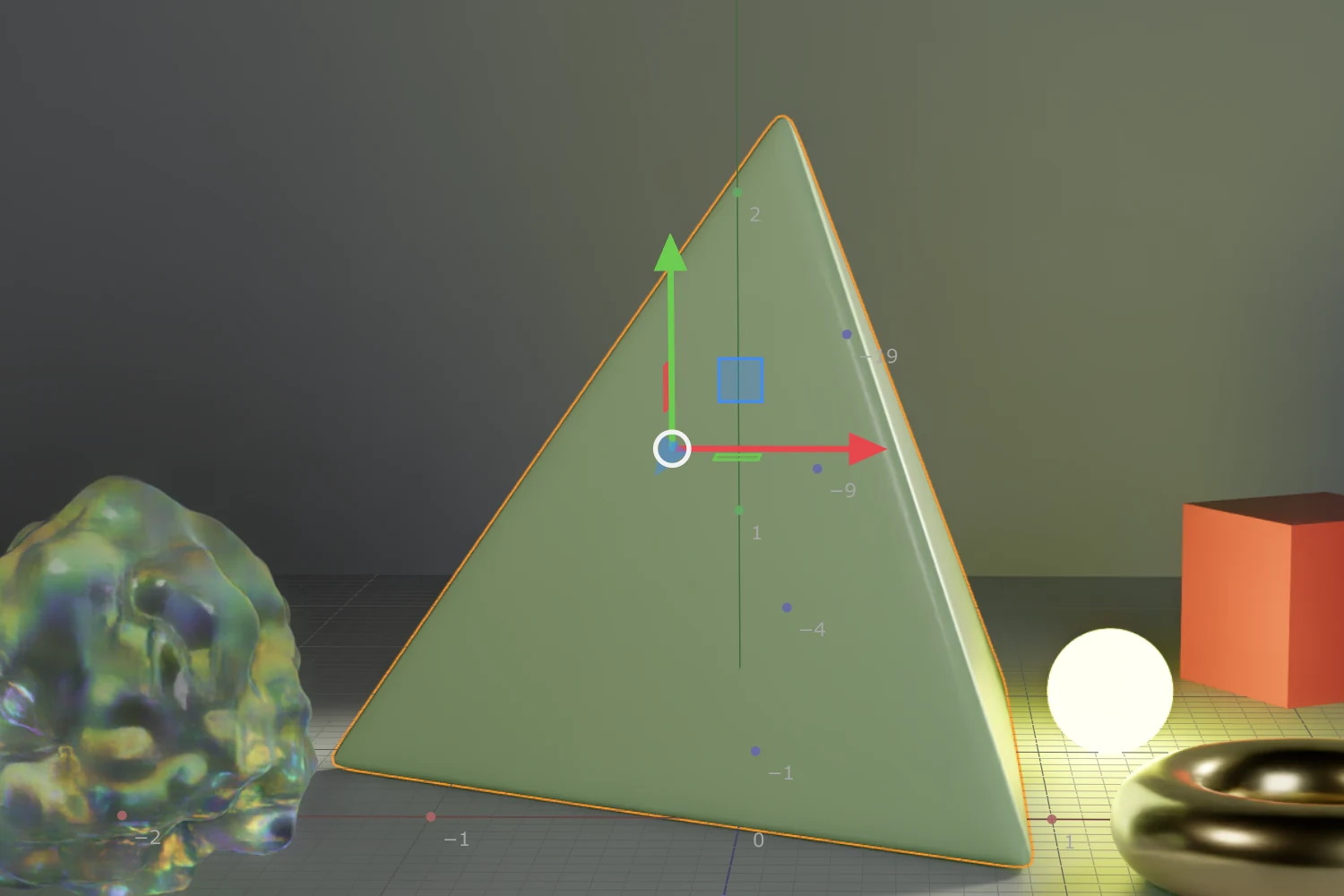
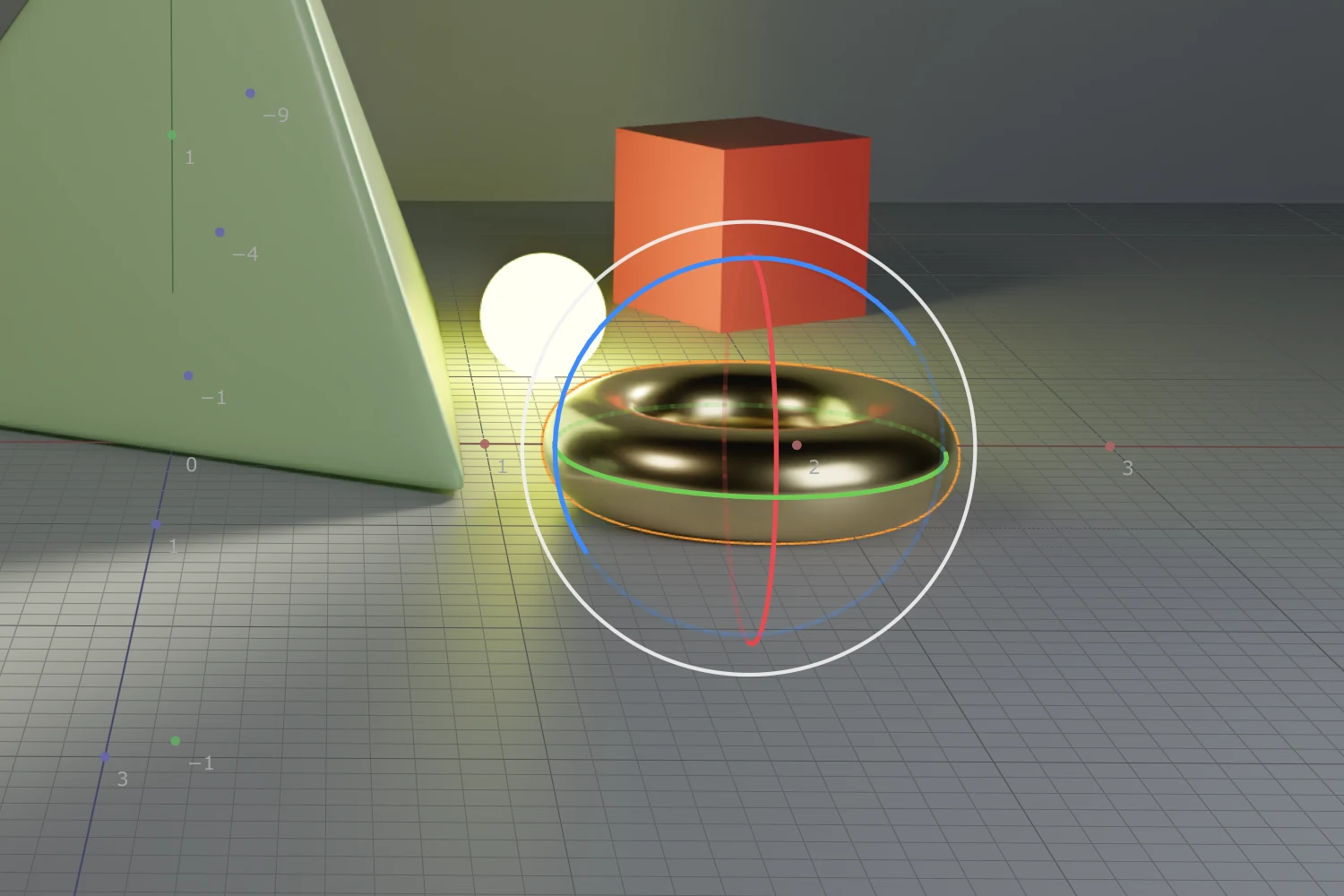
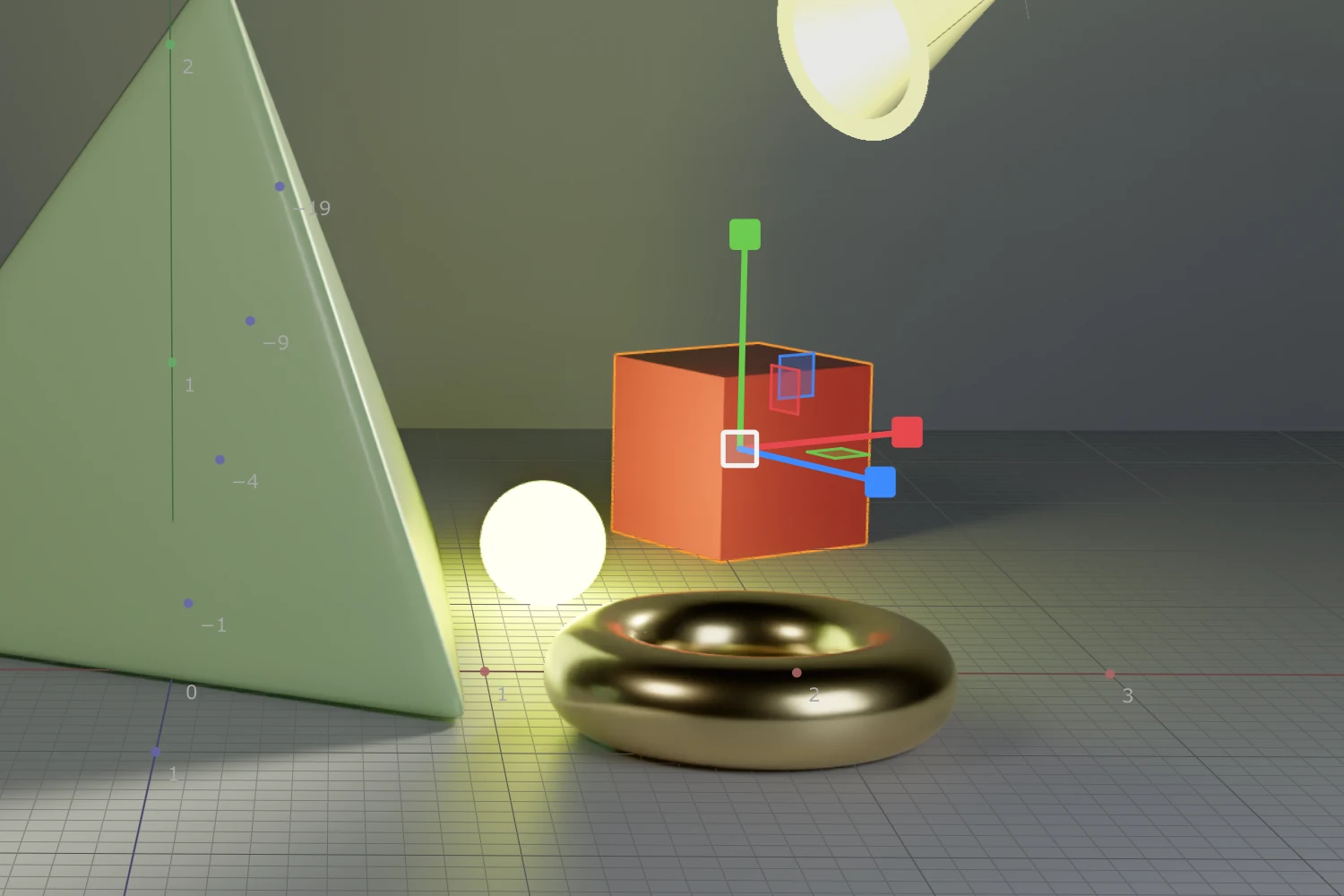
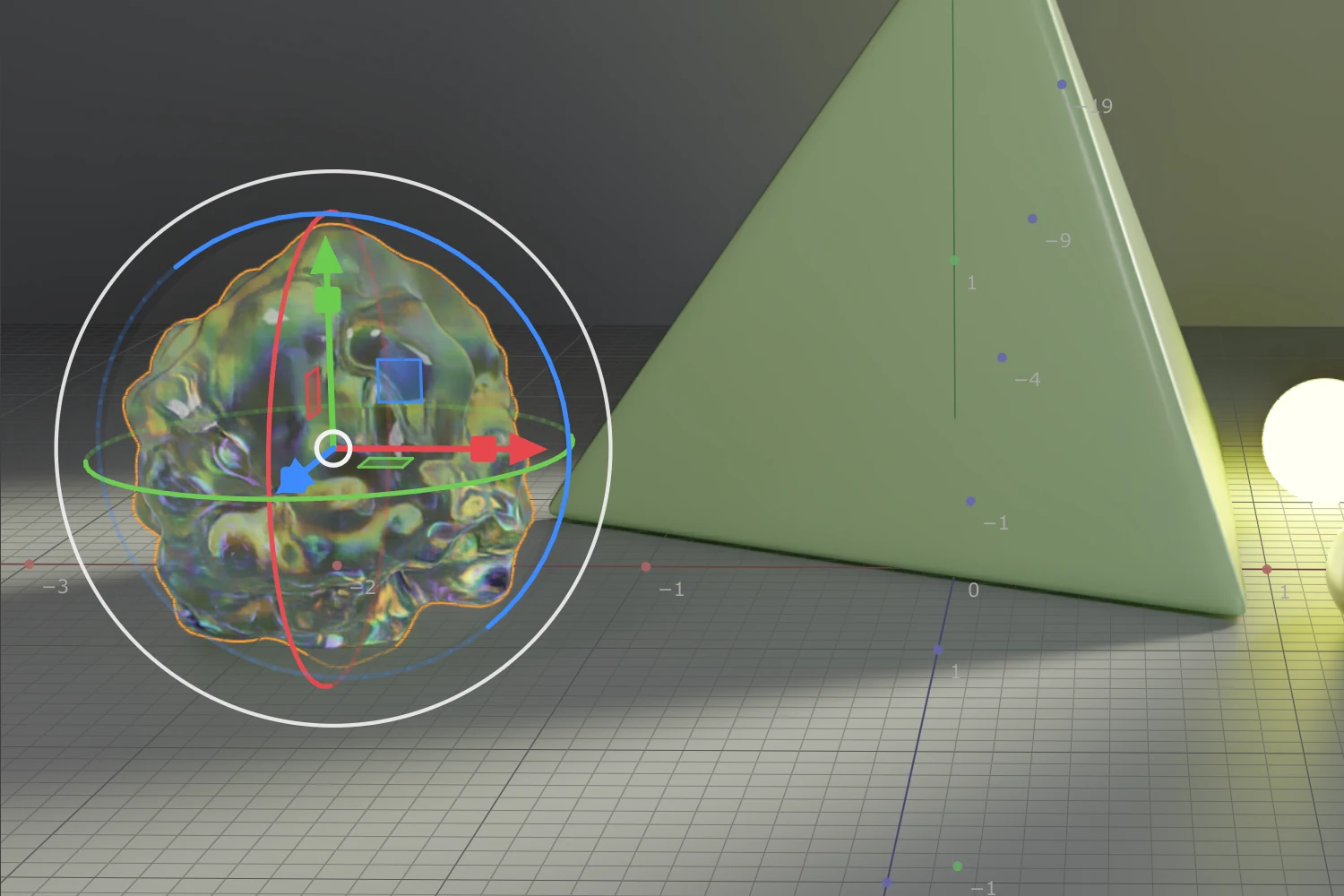
Several Objects
Shift+click or drag a box to select several objects. The gizmo moves them together around the Selection centre or the bounding box of the selection (Space menu); Bounding box in the Overlays menu draws it.
Lights and Cameras
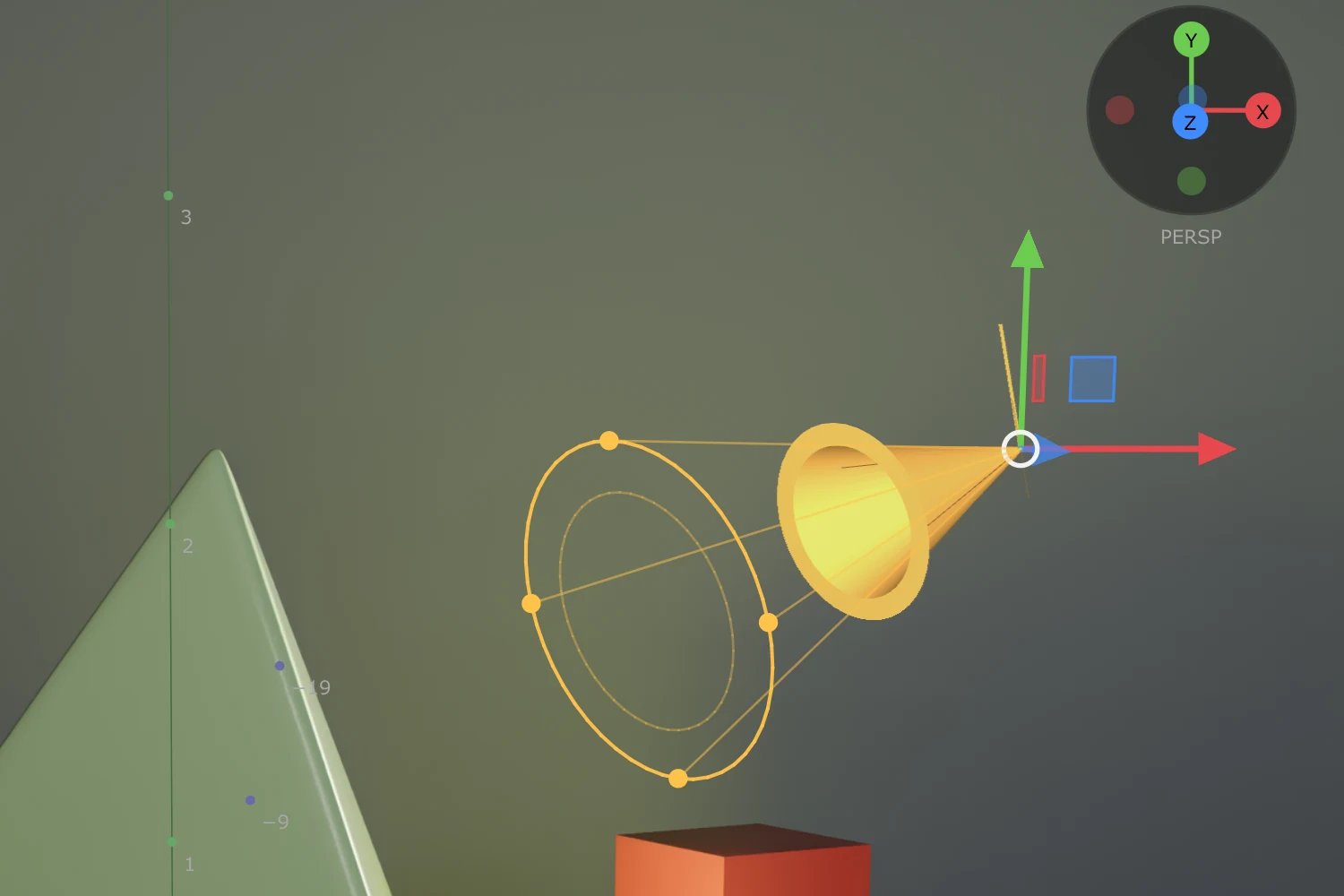
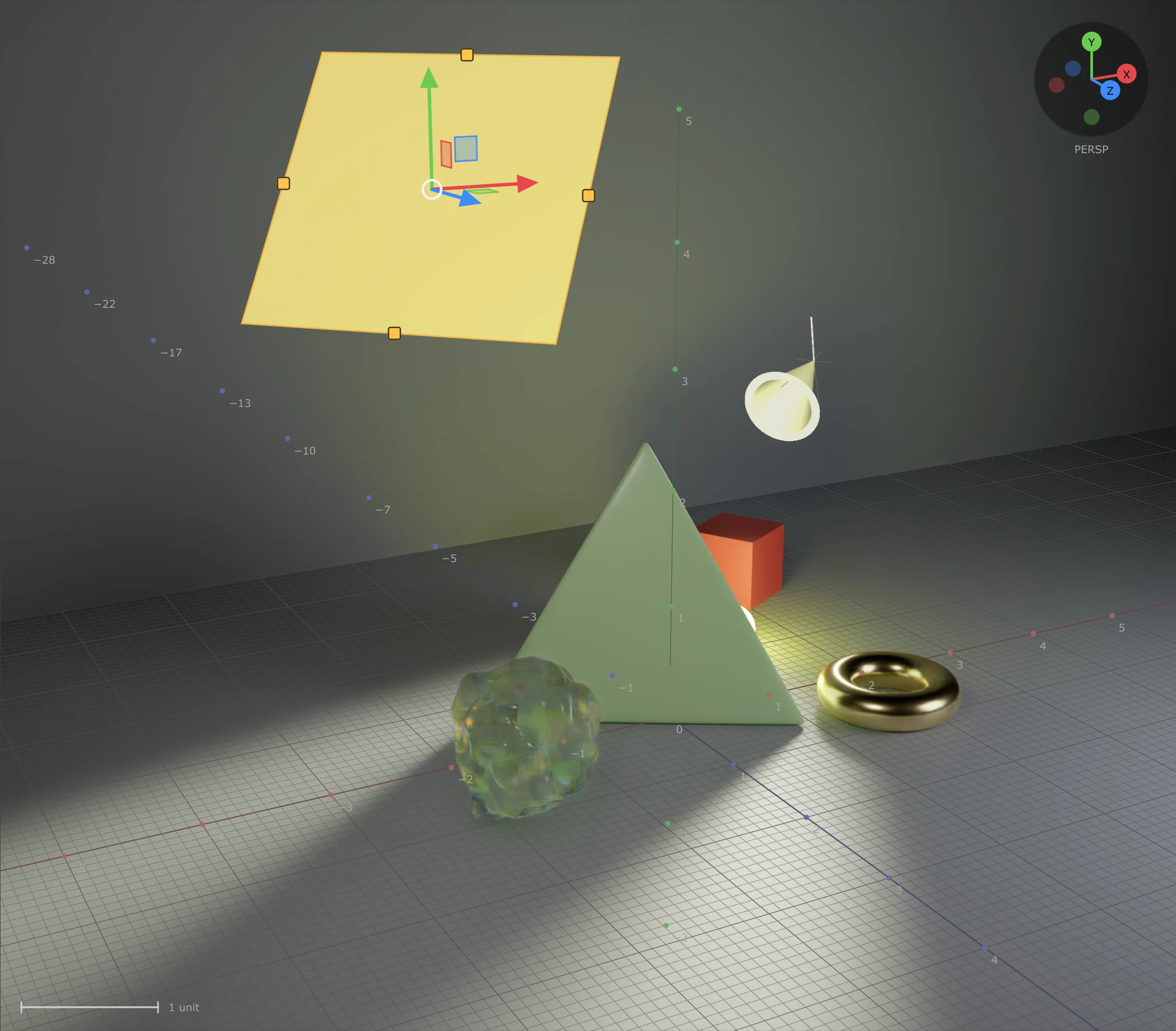
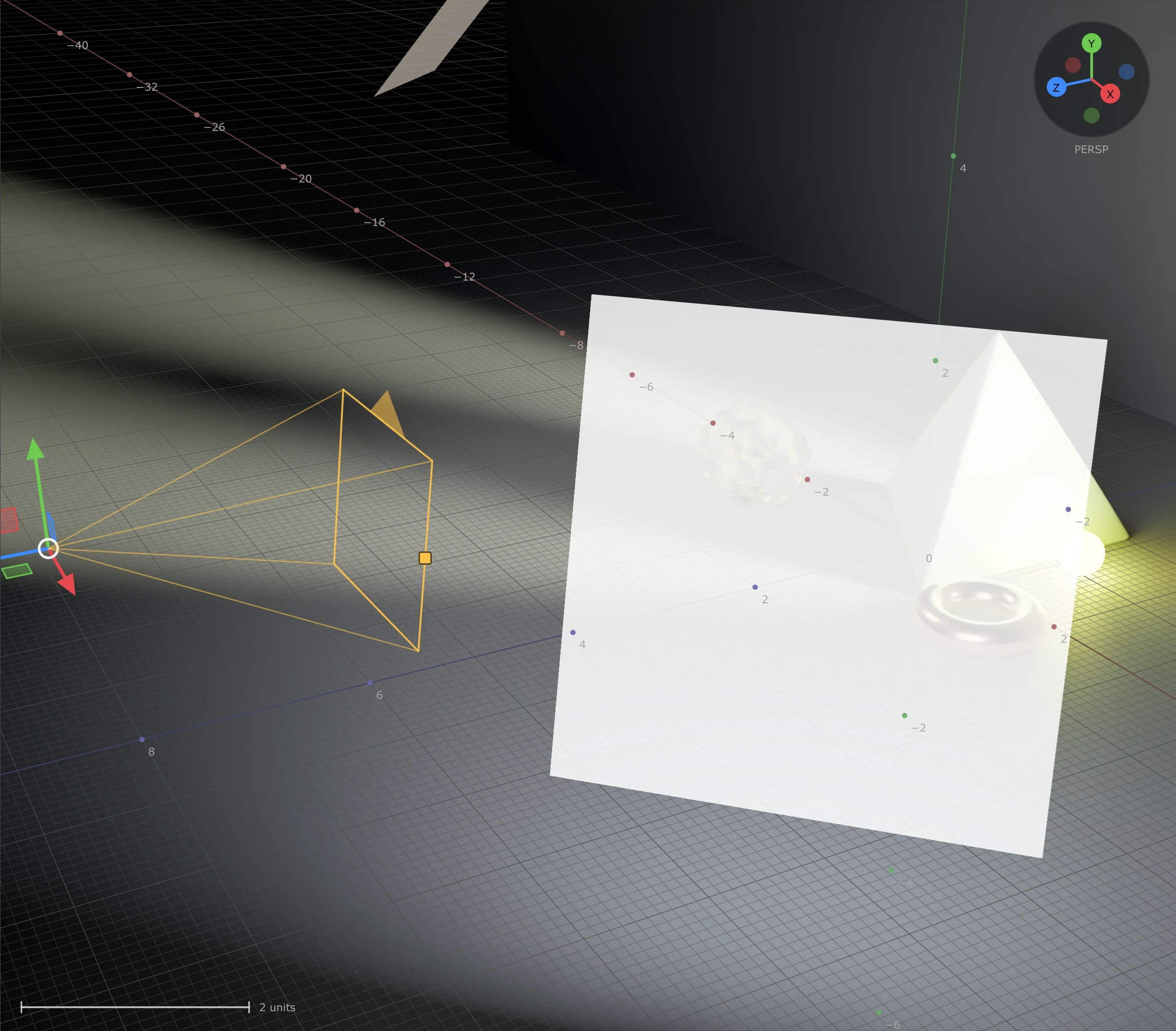
Lights and cameras show as icons in the viewport. Selected, they carry handles for their own settings: the cone angle of a spot light, the size of an area light, the range, and a camera's field of view, orthographic width and focus distance (dragging the focus handle turns on Depth of Field). Alt+click a surface to set the Aura's Focus Distance to it.
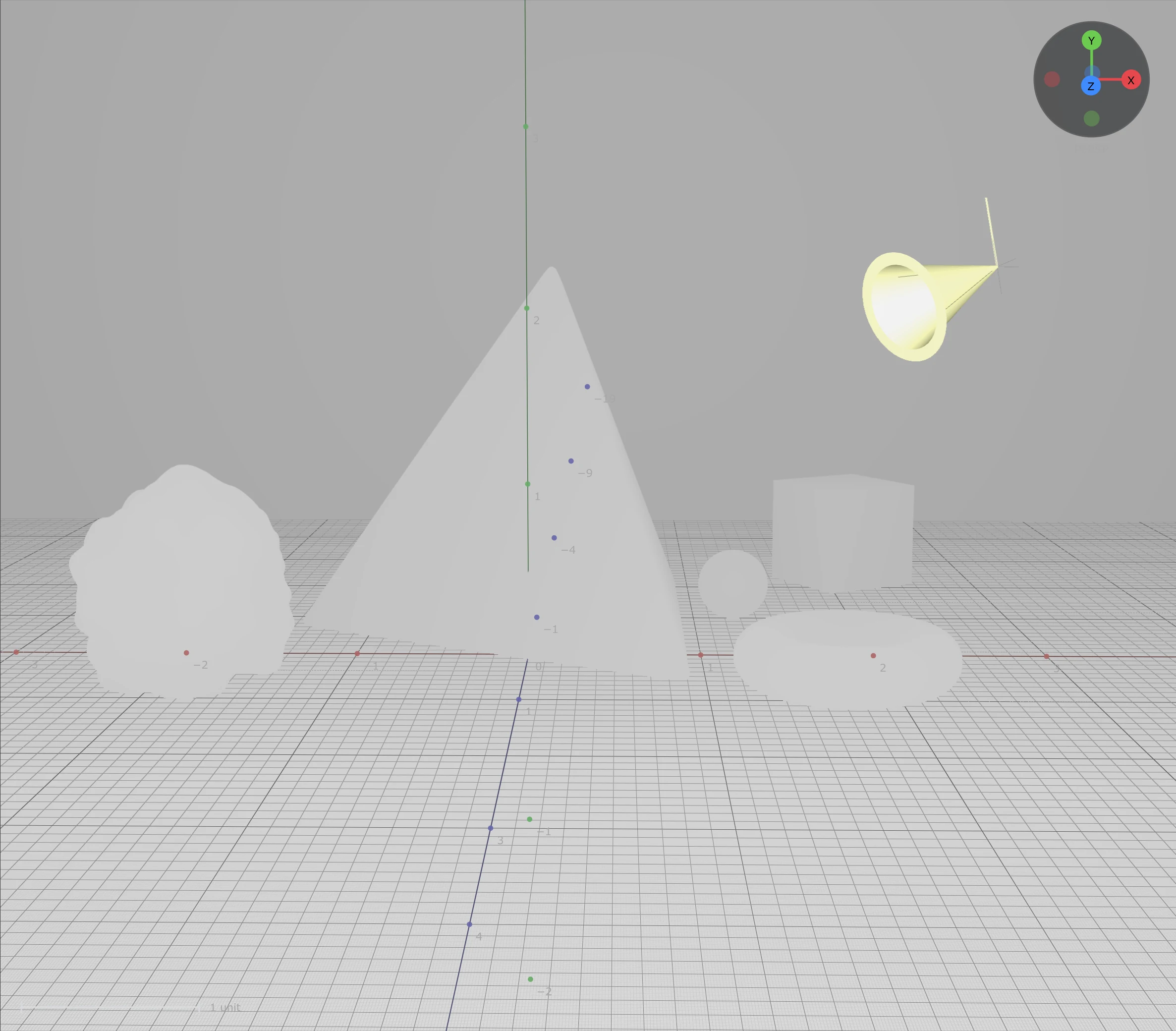
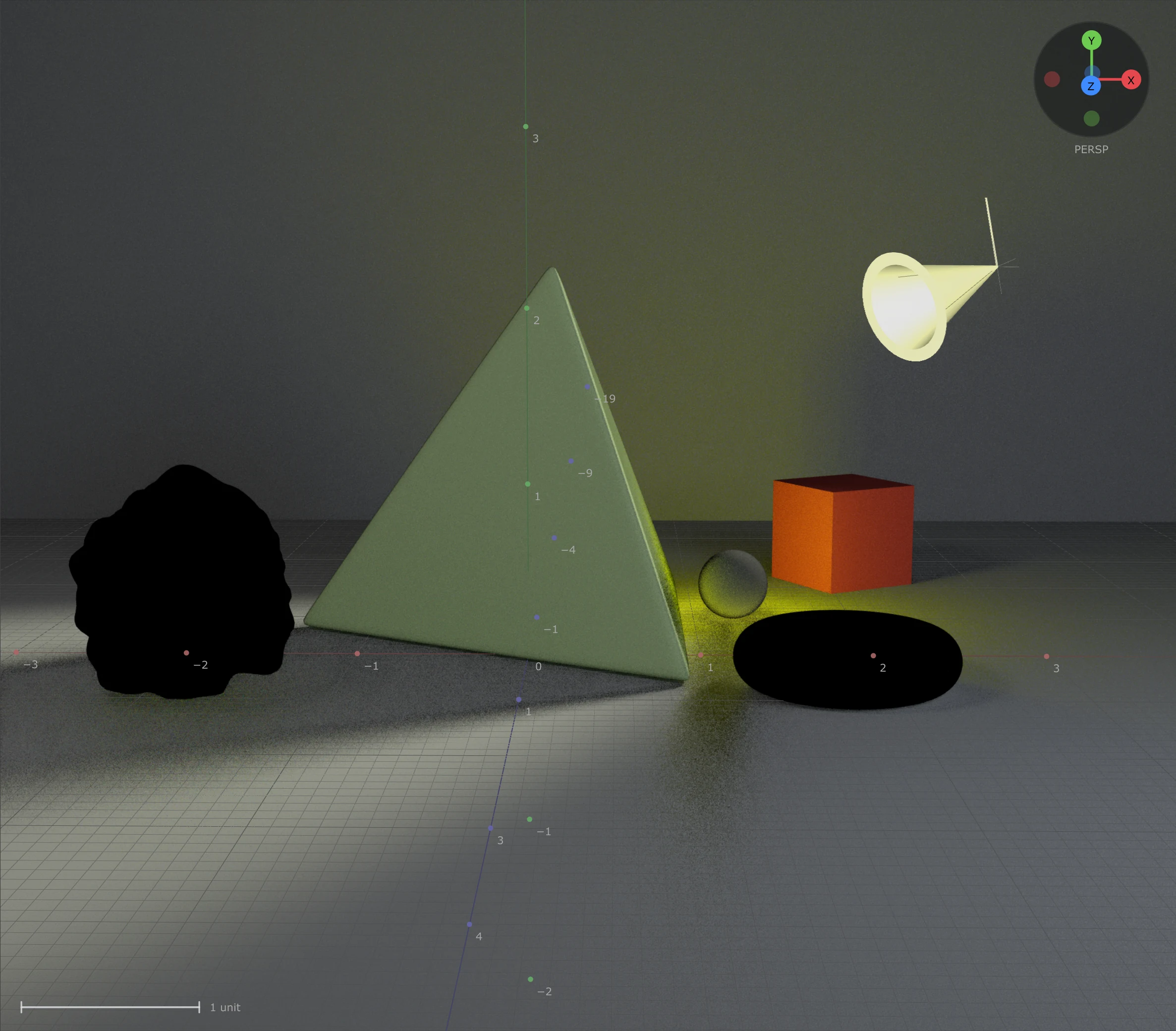
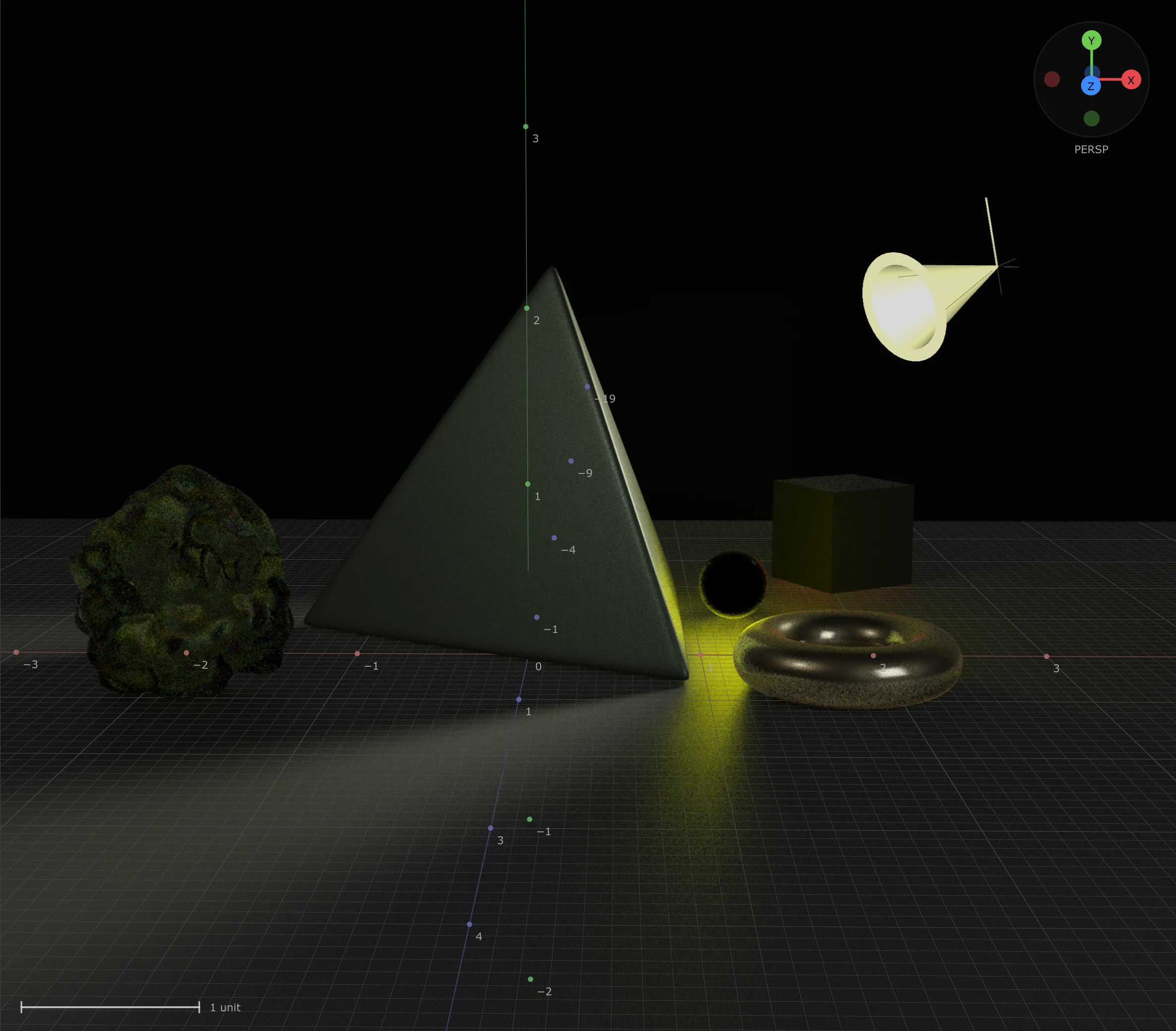
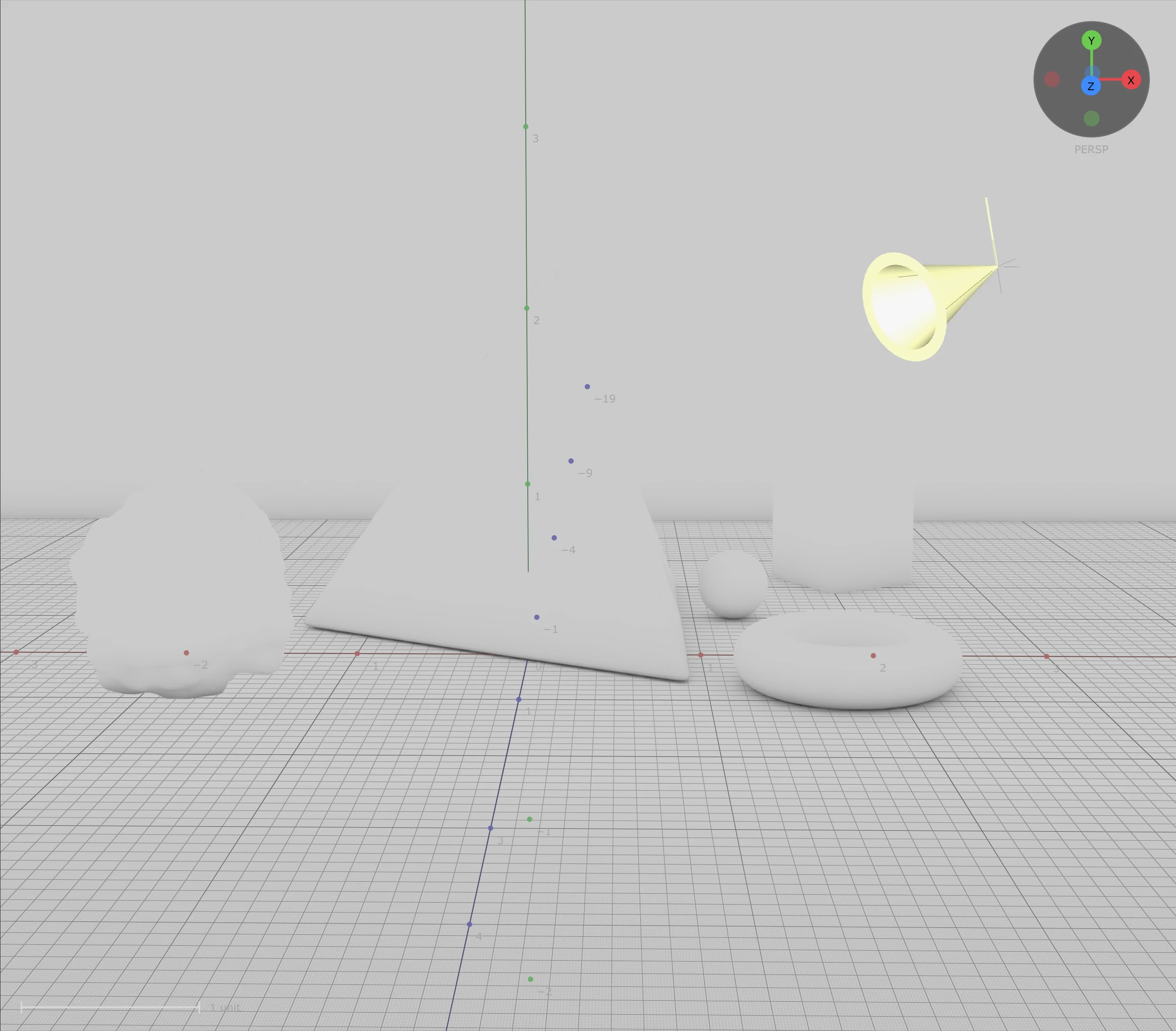
Shading Modes
The Shading menu (w toggles Render and Clay) shows the scene in another way, with the same navigation and tools. The render passes are averaged over frames while the view is still, so they settle clean.
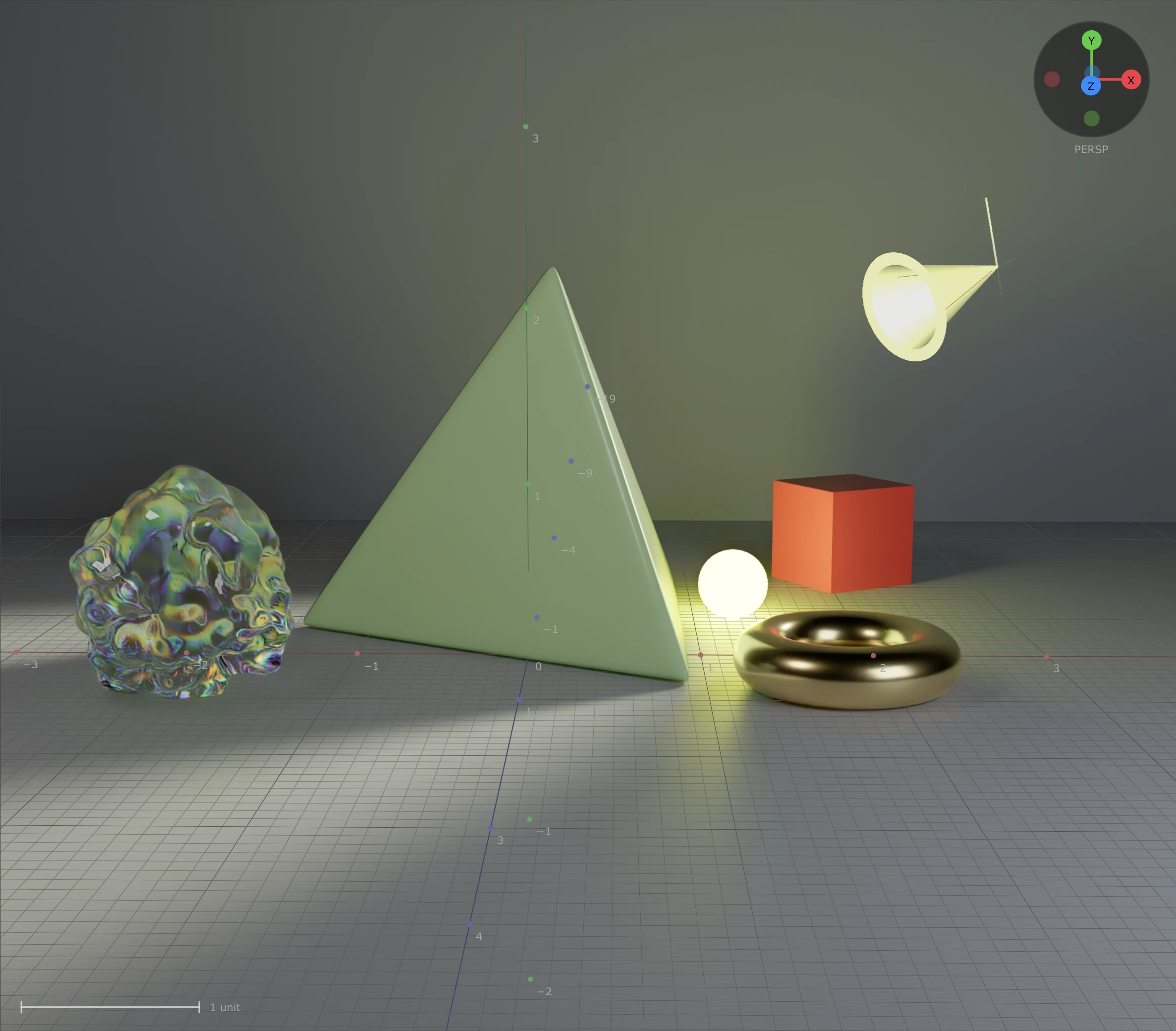
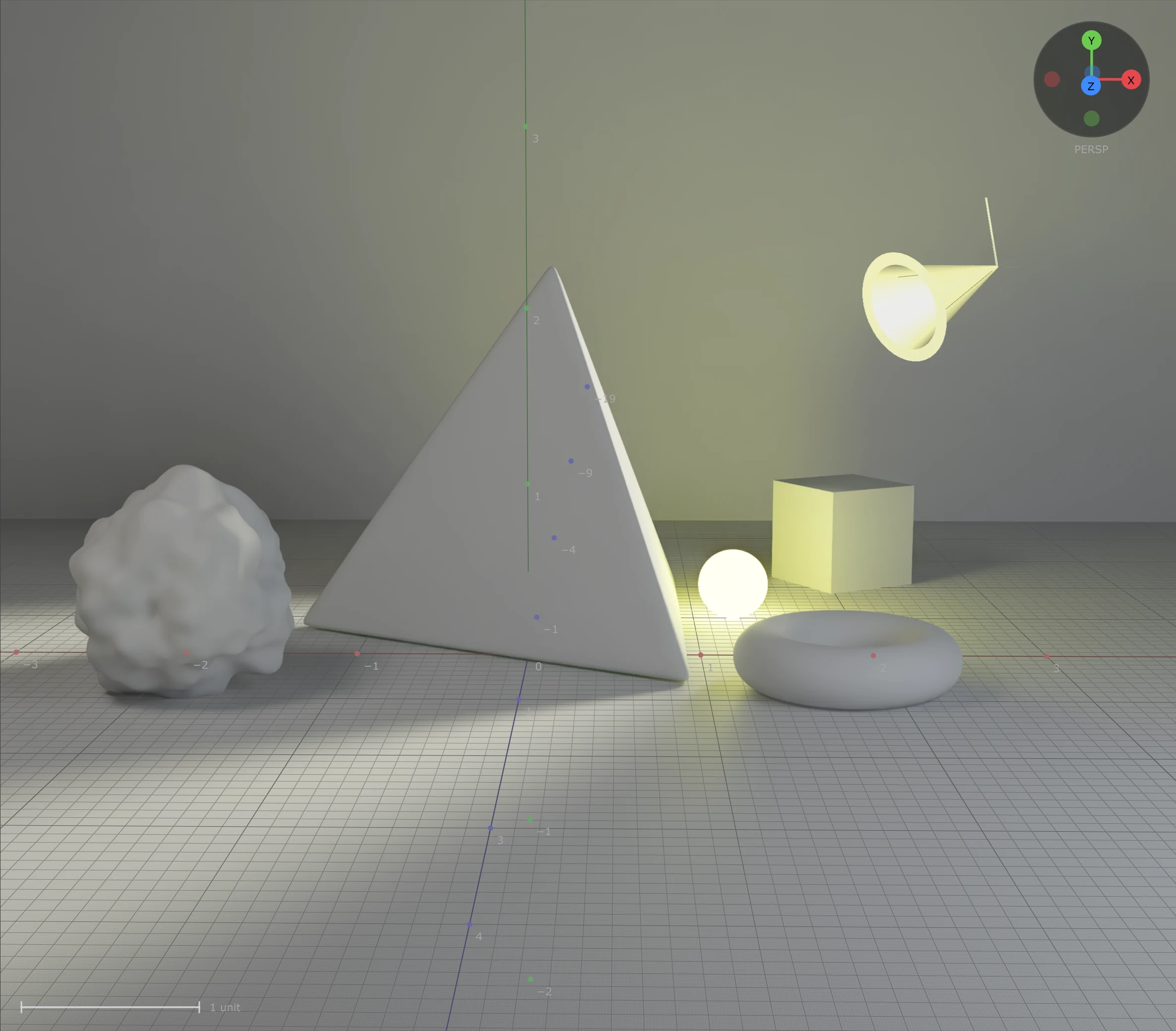
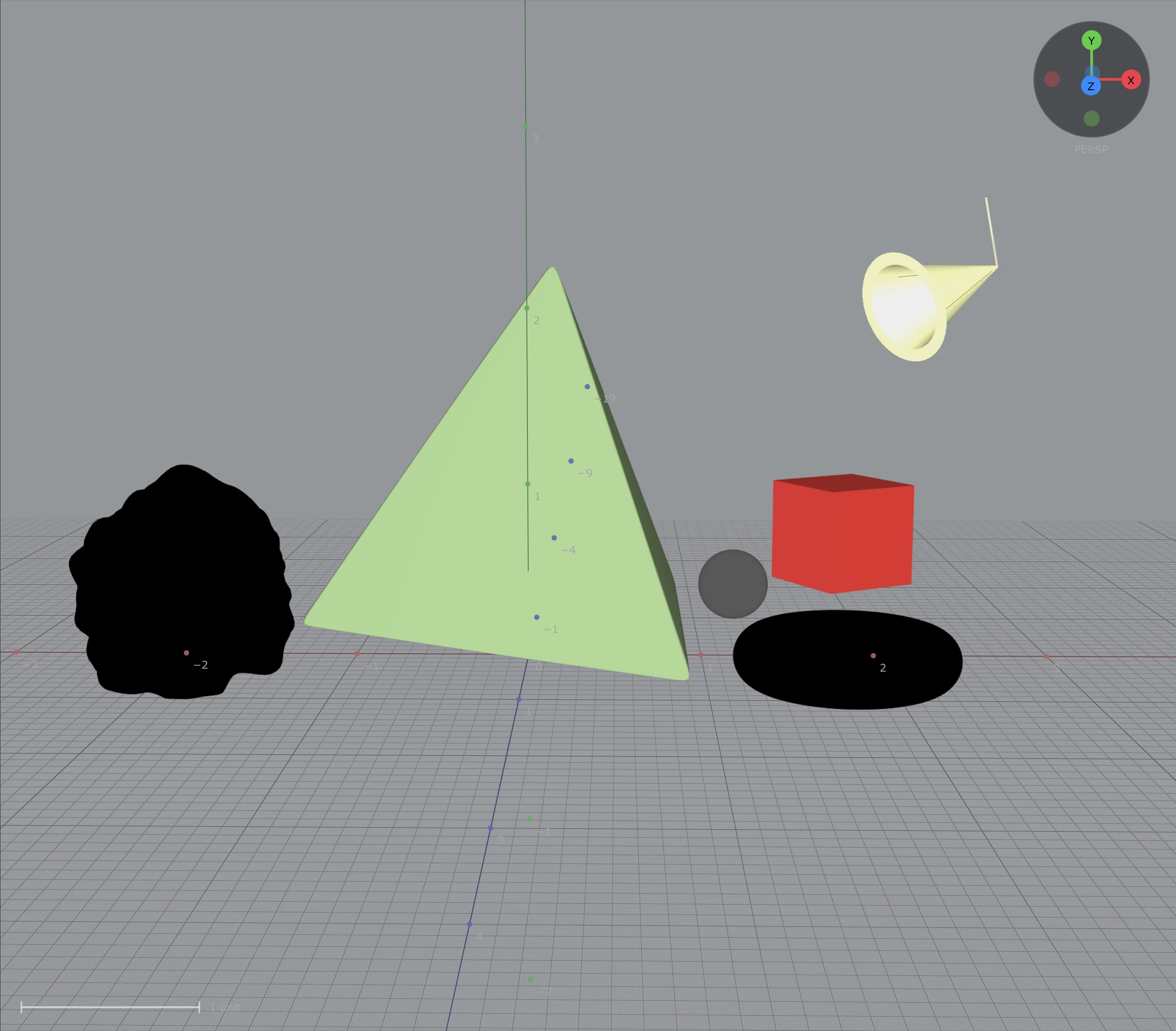
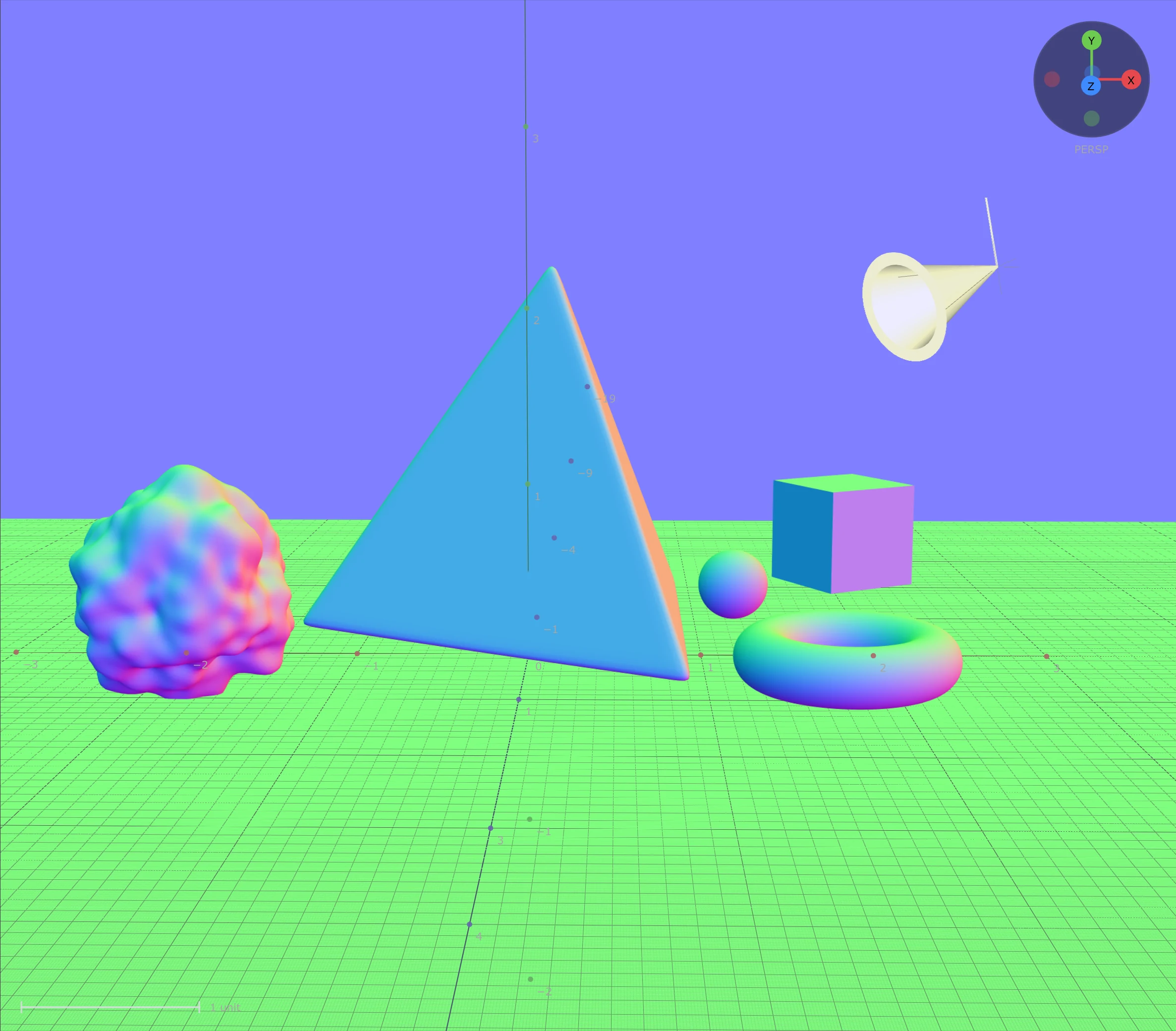
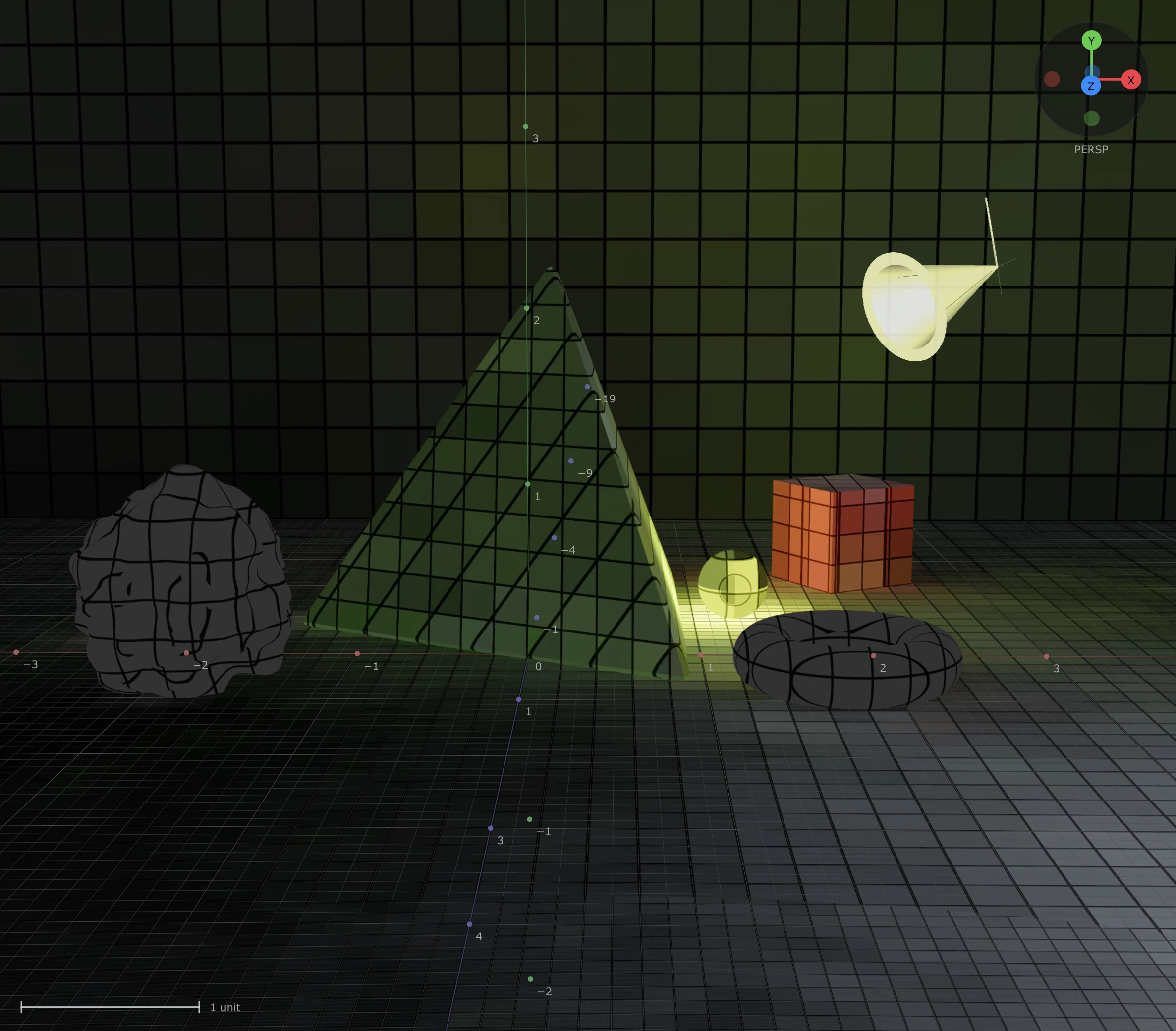
Views, Quad View and Guides
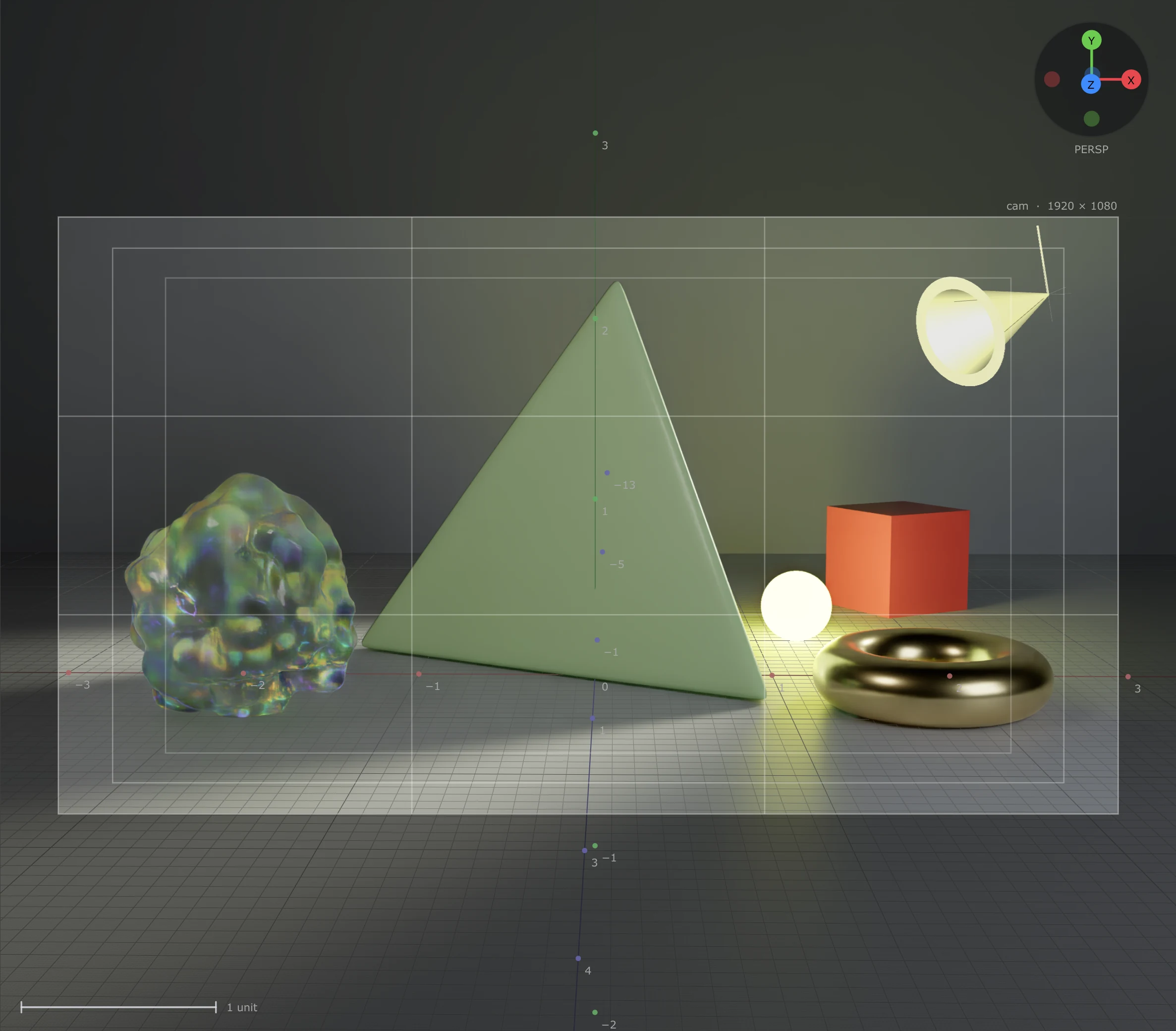
Camera > Look through shows the render from a scene camera: the render camera is marked, and navigating then moves that camera. Guides draw the resolution gate, safe frames, thirds, quarters or a centre cross over it.
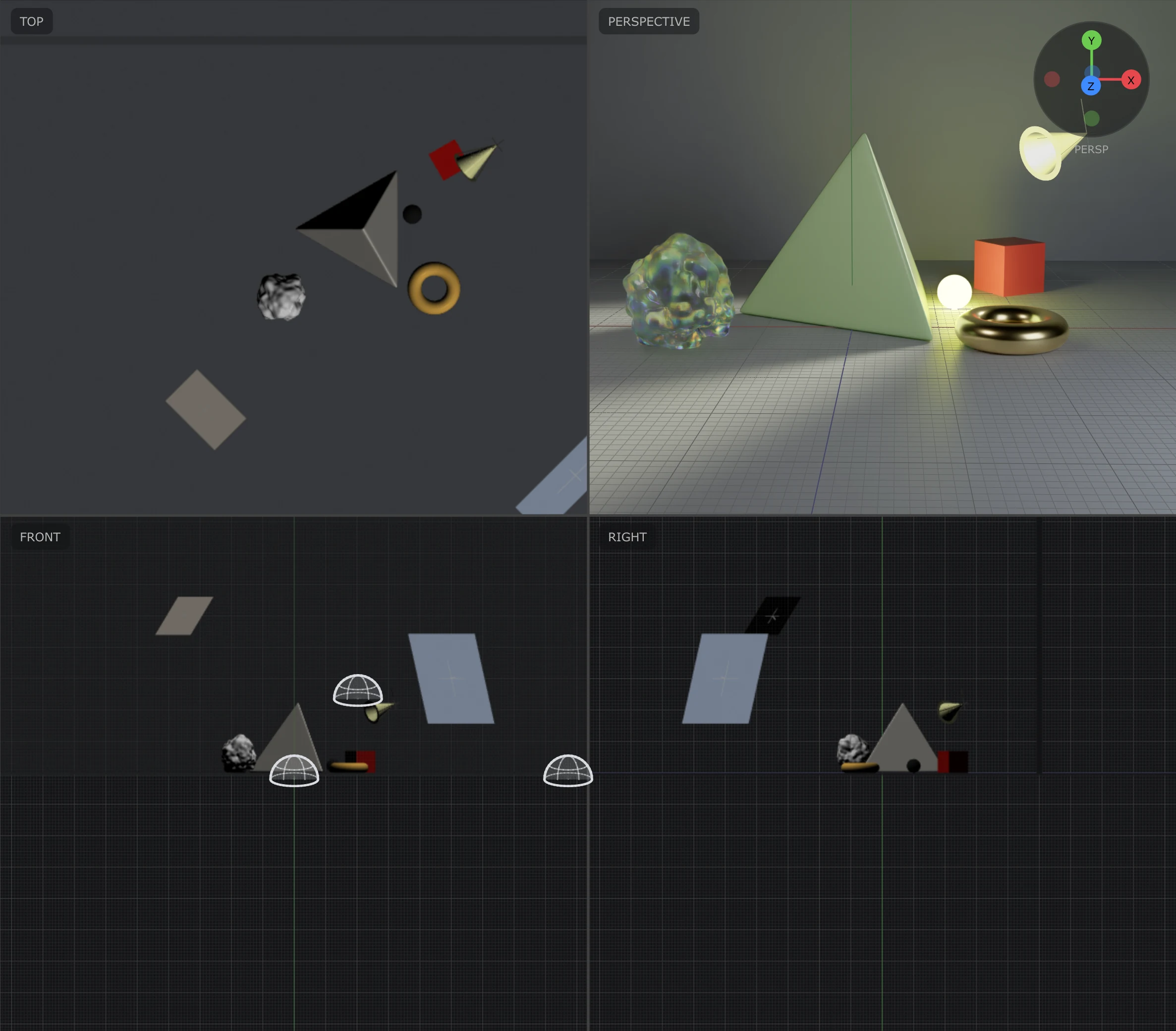
Quad view splits the viewport into Top, Front, Right and the perspective. Click a pane label to maximise that pane; the orthographic panes pan with the left or right button and zoom with the middle button or wheel.
Render Region
Right-click > Render Region, then drag a box: Refine renders only that box, so a detail converges faster. The small x on its corner clears it.
Stats HUD and Axis Gizmo
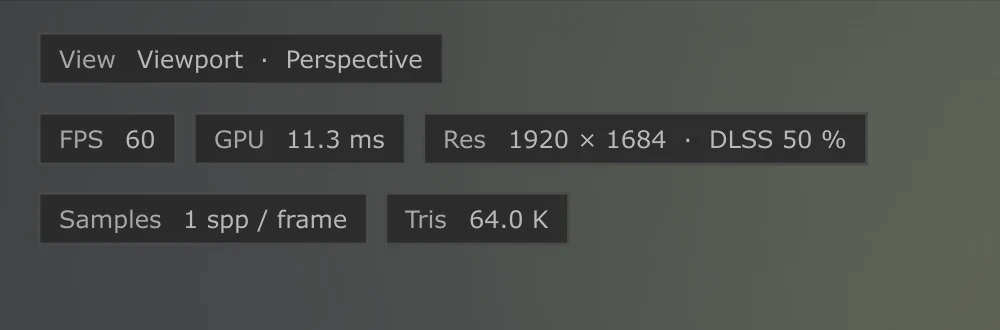
The stats HUD in the top-left corner shows the view, frames per second, the GPU time of a frame, the render resolution (and the internal resolution with DLSS), the samples per frame and the Refine target, the elapsed time, the triangle count and the render mode. The axis gizmo in the top-right corner shows the view orientation.
The Parameters Panel
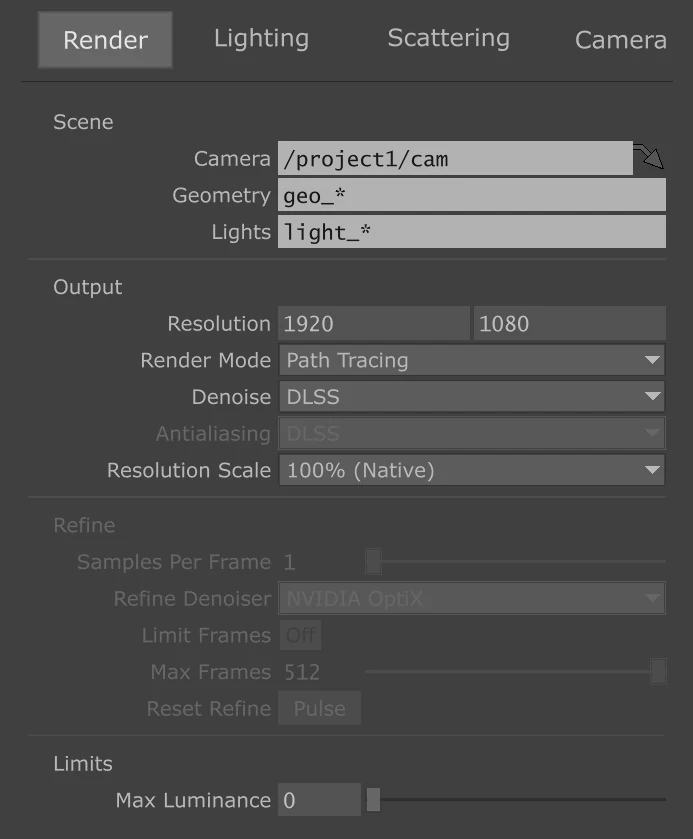
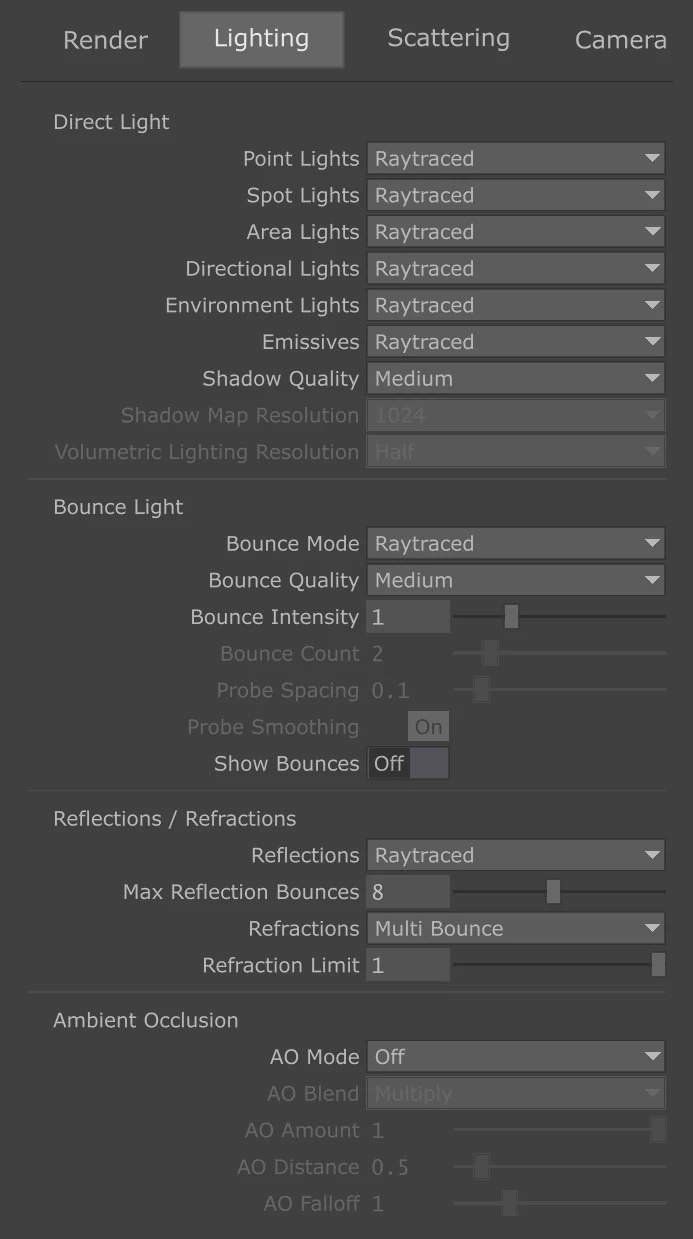
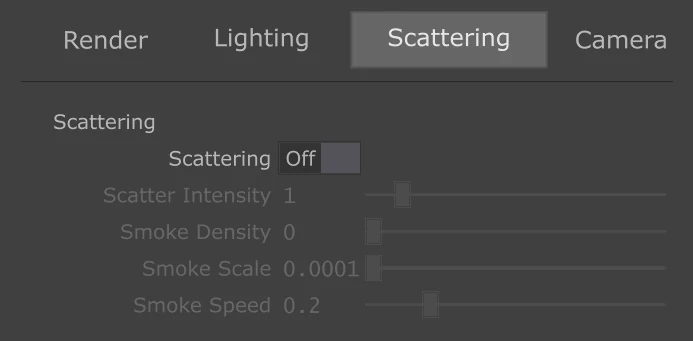
The left panel holds the Aura operator's own parameters, page by page. Edits here are the operator's parameters: a parameter driven by an expression or export shows read-only. Parameters that do not apply to the current mode are greyed out.
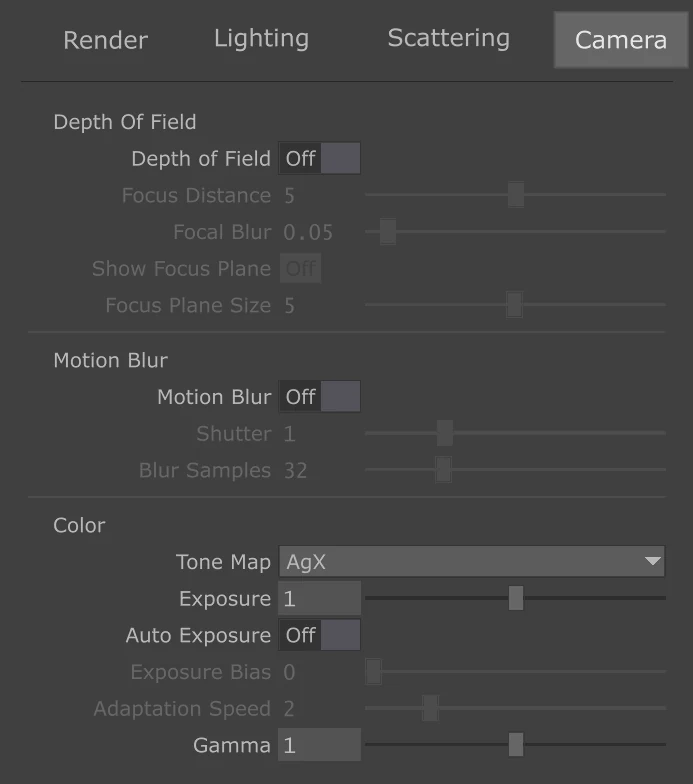
Render
- → Camera, Geometry, Lights - The scene: the render camera and the POPX Geo and Light operators, as patterns
- → Resolution - The output size
- → Render Mode - Path Tracing (random light paths, resolved by Denoise) or Hybrid (every pixel lit directly, smoothed by Antialiasing)
- → Denoise - Path Tracing: Off, DLSS (Ray Reconstruction), Temporal or Refine
- → Antialiasing - Hybrid: Off, FXAA, DLSS, Temporal or Refine
- → Resolution Scale - The internal render size; the main speed control. 100% with DLSS is DLAA
- → Refine - Samples Per Frame, the Refine Denoiser (the OptiX AI denoiser, or None), Limit Frames and Max Frames, and Reset Refine
- → Max Luminance - Clamps light samples to reduce fireflies; 0 turns the clamp off
Lighting
- → Direct light - Per light type: Raytraced shadows, Shadow Map or Off; Emissives with or without shadows; Shadow Quality and Shadow Map Resolution
- → Bounce light - Off, Probes (light probes on the surfaces the camera sees) or Raytraced (bounce rays per pixel, further bounces from a radiance cache), with Bounce Quality and Bounce Intensity
- → Reflections - Raytraced, Hybrid, Cached or Off, and Max Reflection Bounces
- → Refractions - Multi Bounce, Single Bounce, Screen Space or Off, and the Refraction Limit
- → Ambient occlusion - SSAO or Raytraced, blended by Multiply, Replace or Add
Scattering and Camera
- → Scattering - A fog that fills the view: beams and haze from every light, scaled by each light's Scattering Intensity, broken into drifting smoke by Smoke Density
- → Depth of Field - Thin-lens blur from Focus Distance and Focal Blur; Show Focus Plane draws the plane in focus
- → Motion Blur - Blur along the motion of each pixel, with Shutter and Blur Samples
- → Tone Map - ACES and AgX (filmic), Khronos PBR Neutral (true colors) or Off (linear), with Exposure, Auto Exposure and Gamma
The Object Panel
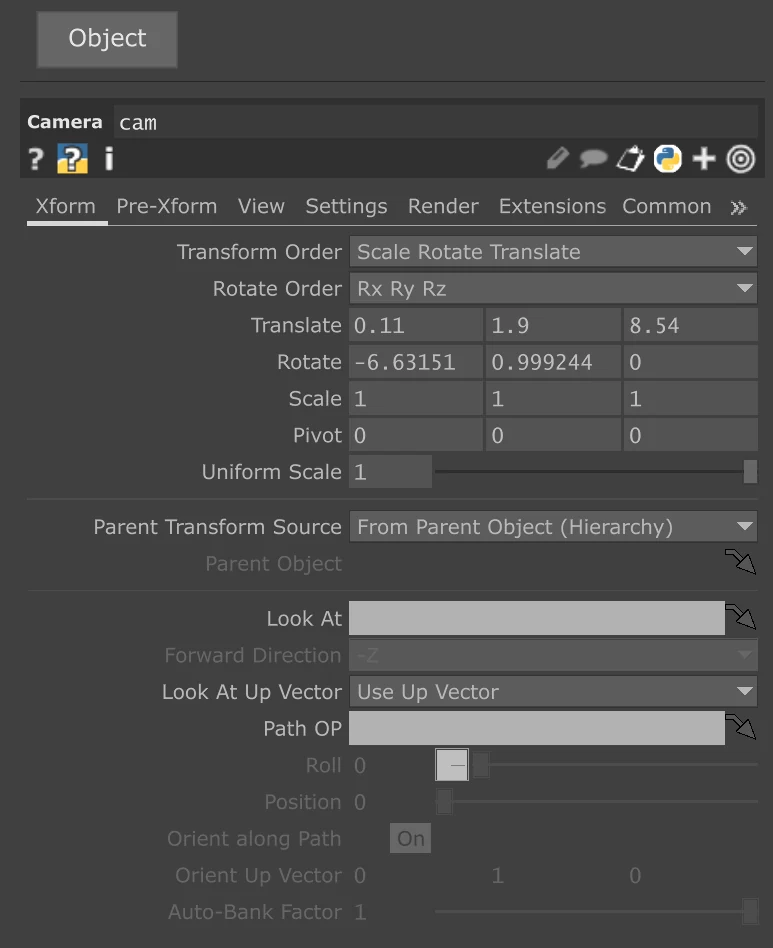
The right panel shows the selected object's parameters: a POPX Geo, a POPX Light or a camera. When a POPX Material feeds the selected Geo, the Material tab shows the material's parameters, so the whole look of an object can be edited without leaving the viewport.
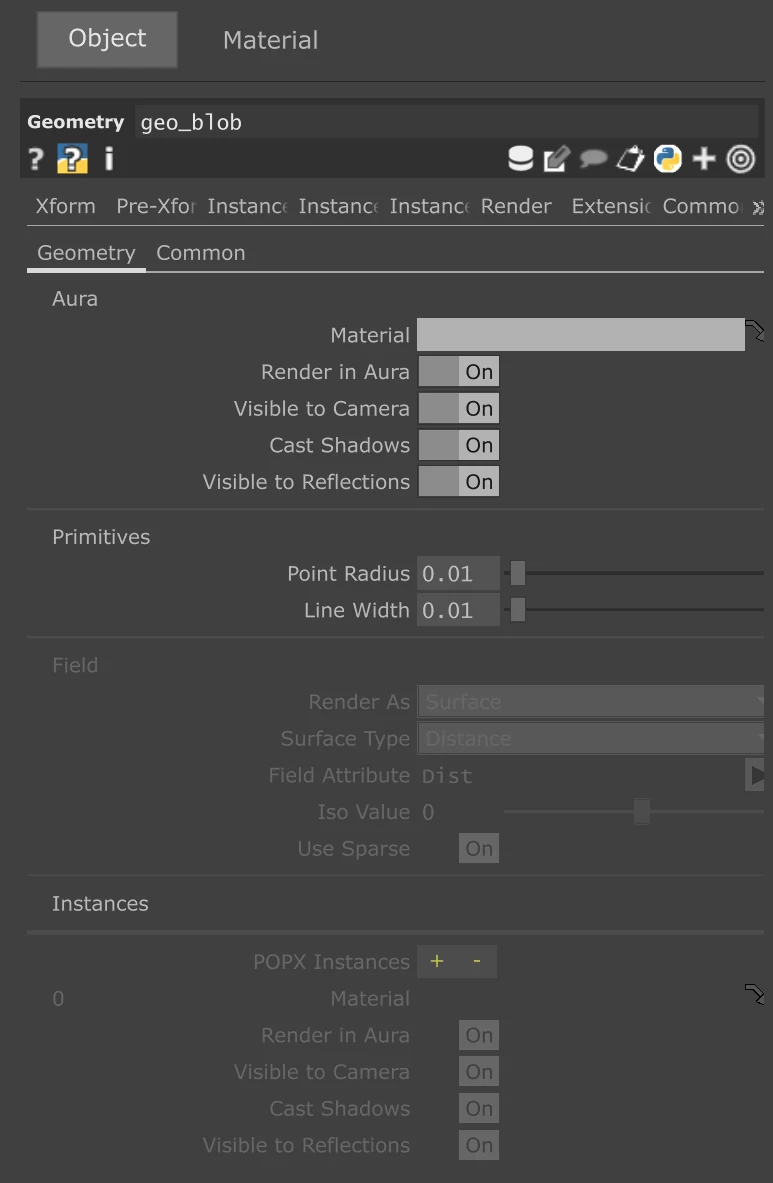
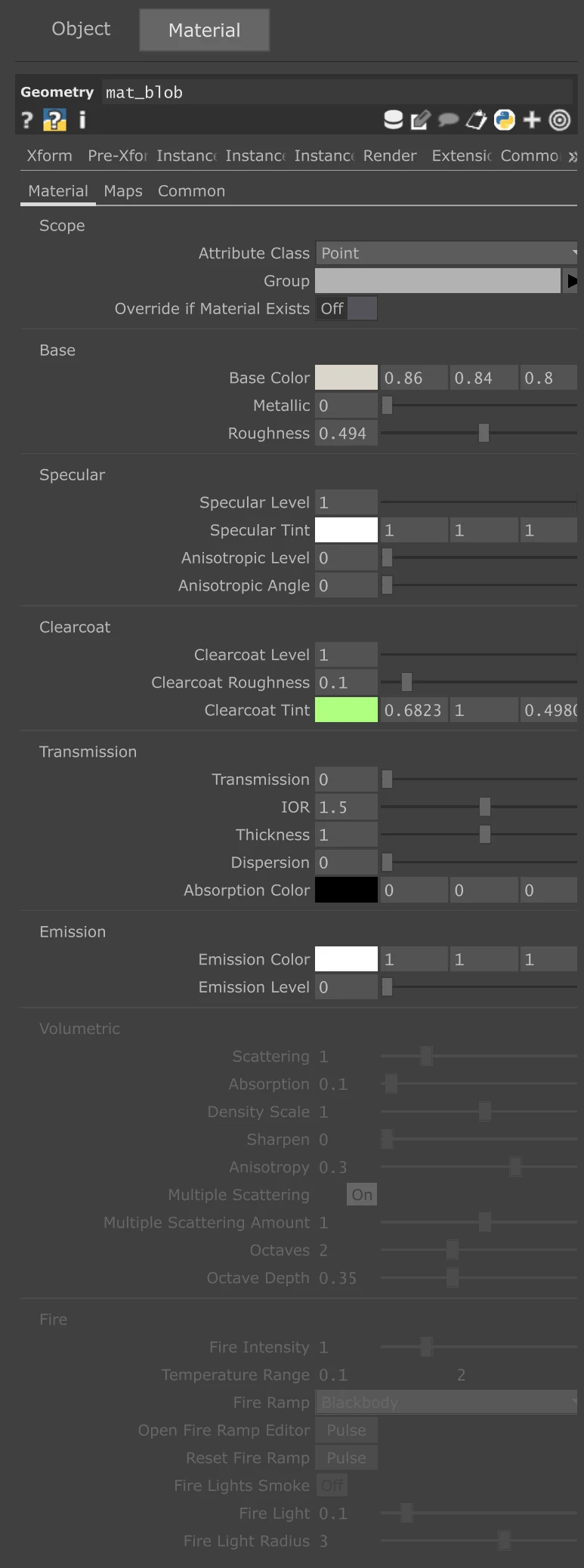
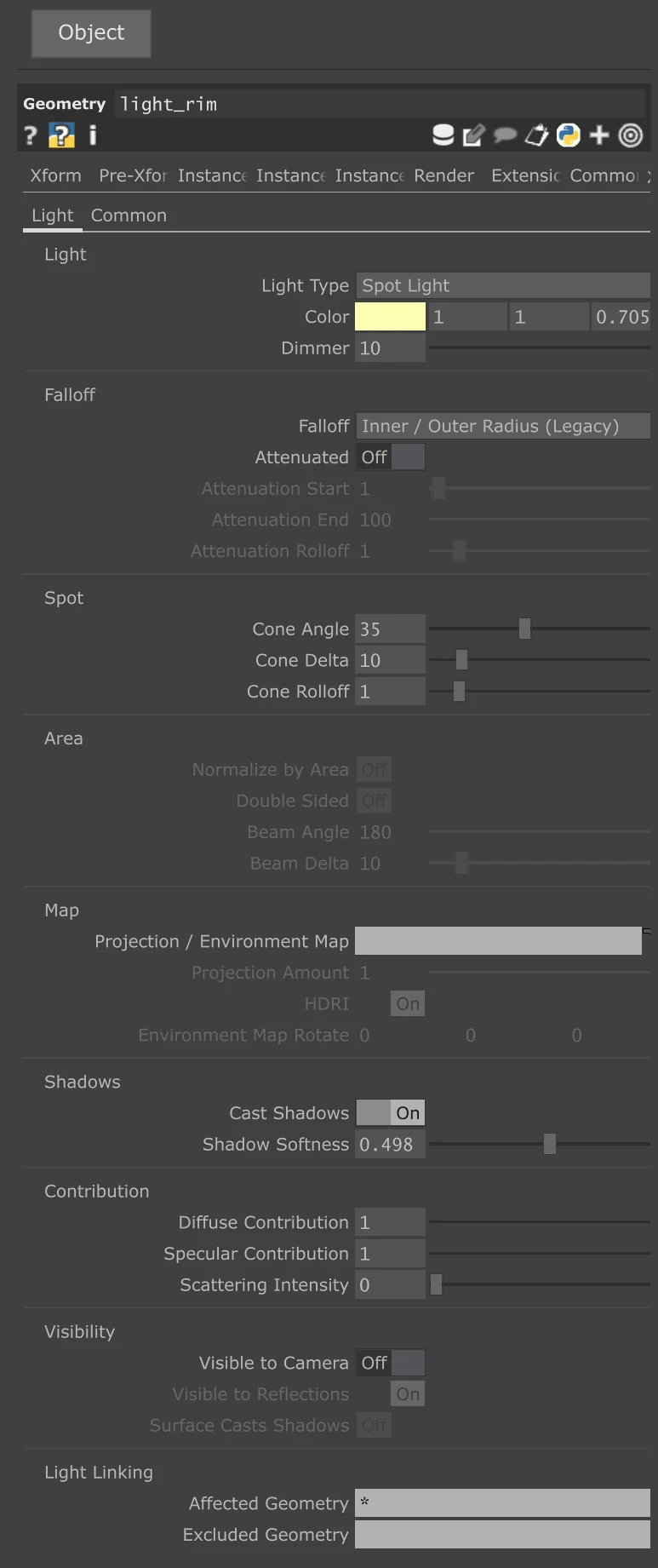
POPX Geo
A POPX Geo puts its input POP in the Aura scene: a POPX Geometry with its instances, any plain POP (triangles and quads, points as spheres, lines as tubes), or a POPX field rendered as a surface or a volume.
- → Material - The material: a POPX Material for Aura. Wiring a POPX Material in before the Geo also works, per point
- → Render in Aura - Renders the geometry in Aura
- → Visible to Camera - Shows it to the camera; off, it still casts shadows and shows in reflections
- → Cast Shadows - Casts shadows in Aura
- → Visible to Reflections - Shows it in reflections and refractions
- → Point Radius, Line Width - The size of points rendered as spheres and lines rendered as tubes (multiplied by a PointScale or LineWidth attribute)
- → Field - Render As surface or volume, the field attribute and Iso Value of the surface, and Use Sparse for a POPX Flow
- → POPX Instances - The same flags and a material per instance slot of a POPX Geometry
POPX Material
A POPX Material writes the material attributes onto the geometry that flows through it, so different groups or points can carry different materials. The Group and Attribute Class parameters choose where it applies.
- → Base - Base Color, Metallic and Roughness
- → Specular - Specular Level and Tint for non-metals, and Anisotropic Level and Angle for brushed highlights
- → Clearcoat - A second glossy layer for car paint or lacquer, with its own roughness and tint
- → Transmission - Glass and transparent materials: IOR, Thickness, Dispersion for rainbow edges, and the Absorption Color the light picks up inside
- → Emission - Emission Color and Level: the surface glows and, with Emissives on, lights the scene
- → Volume and fire - Scattering, absorption, anisotropy and multiple scattering for smoke, and a fire ramp and fire light for flames, when a field renders as a volume
- → Maps - A TOP (or several, picked per instance) for each property, a normal map with Bump Scale, or a Substance TOP that fills the maps left empty
POPX Light
A POPX Light is a light of any type. Its transform places and aims it; in the viewport its icon and handles edit it directly. A light with Dimmer 0 is left out of the render.
- → Light Type - Point, Spot, Area, Environment, Directional or Ambient
- → Color, Dimmer - The light color and intensity
- → Falloff - Physical (inverse square) or Legacy, with Attenuated and its start, end and rolloff
- → Spot - Cone Angle, Cone Delta and Cone Rolloff
- → Area - The panel size from the light's scale; Normalize by Area keeps the brightness when resizing; Double Sided; Beam Angle and Beam Delta
- → Map - A projection map, or the HDR environment map of an Environment light with its rotation
- → Shadows - Cast Shadows and Shadow Softness
- → Contribution - Diffuse and Specular Contribution, and the Scattering Intensity in the Aura fog
- → Visibility - Visible to Camera and Visible to Reflections show the light itself
- → Light Linking - Affected and Excluded Geometry choose what the light lights
Refine for Stills and Video
Set Denoise (Path Tracing) or Antialiasing (Hybrid) to Refine: every frame adds Samples Per Frame samples per pixel and the image converges. Limit Frames and Max Frames stop the accumulation, and the Refine Denoiser cleans the result. In Path Tracing, Refine traces full light paths with no real-time shortcuts, so it is the reference for the real-time modes. Camera, light and material edits restart it.
Performance
- → Resolution Scale - The main speed control in both modes
- → Bounce Quality, Shadow Quality - The next two; Bounce Mode Off is direct light only
- → Hybrid - Deterministic and clean from the first frame, for interactive work
- → Path Tracing + Refine - The reference for final frames
- → Pause - Stops the engine; a paused or unloaded Aura costs nothing per frame